Teams and plans
Every plan runs goal journeys, Explores, and audits on every device. Paid plans add more runs, PDFs, dark mode, signing in to your own site, and a workspace your team shares.
The plans
| Feature | Free | Pro | Team | Enterprise |
|---|---|---|---|---|
| Runs a month | 20 | 300 | 1,500 | Custom |
| Repeating journeys and audits | 1 | 10 | 50 | Custom |
| Goal journeys, Explore, and audits | ||||
| Videos of goal runs | ||||
| Desktop, tablet, and phone | ||||
| What changed between runs | ||||
| Share links | ||||
| PDF reports | ||||
| Journeys in dark mode | ||||
| Sign in to your site (sign-in form, password pop-up, headers) | ||||
| Shared workspace with invites | ||||
| Email alerts on changes |
Prices are on Pricing. Runs start again on the 1st of every month, and unused ones don’t carry over. Free has 20 a month, so trying it costs nothing.
Your plan
Choose Plan in the sidebar (or Your plan in the account menu at its foot) to see where you stand.
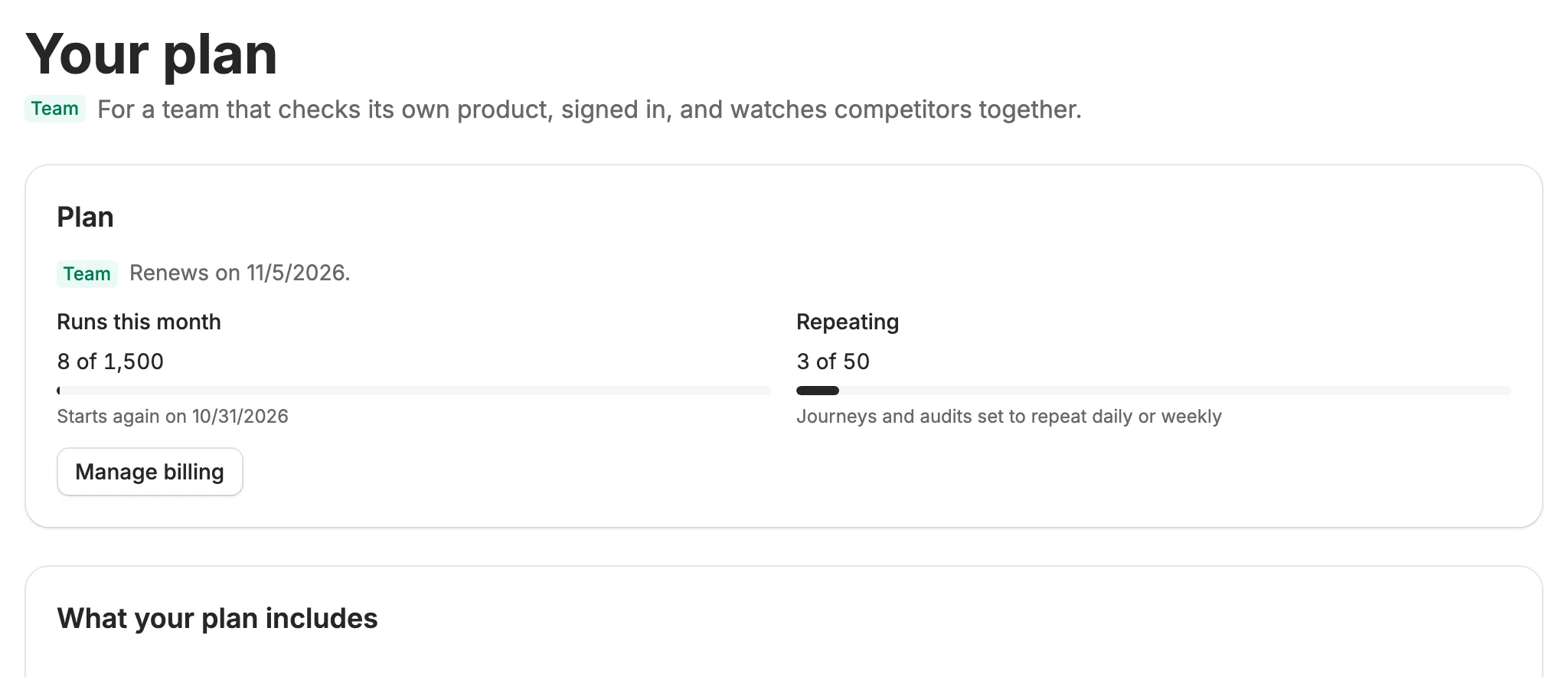
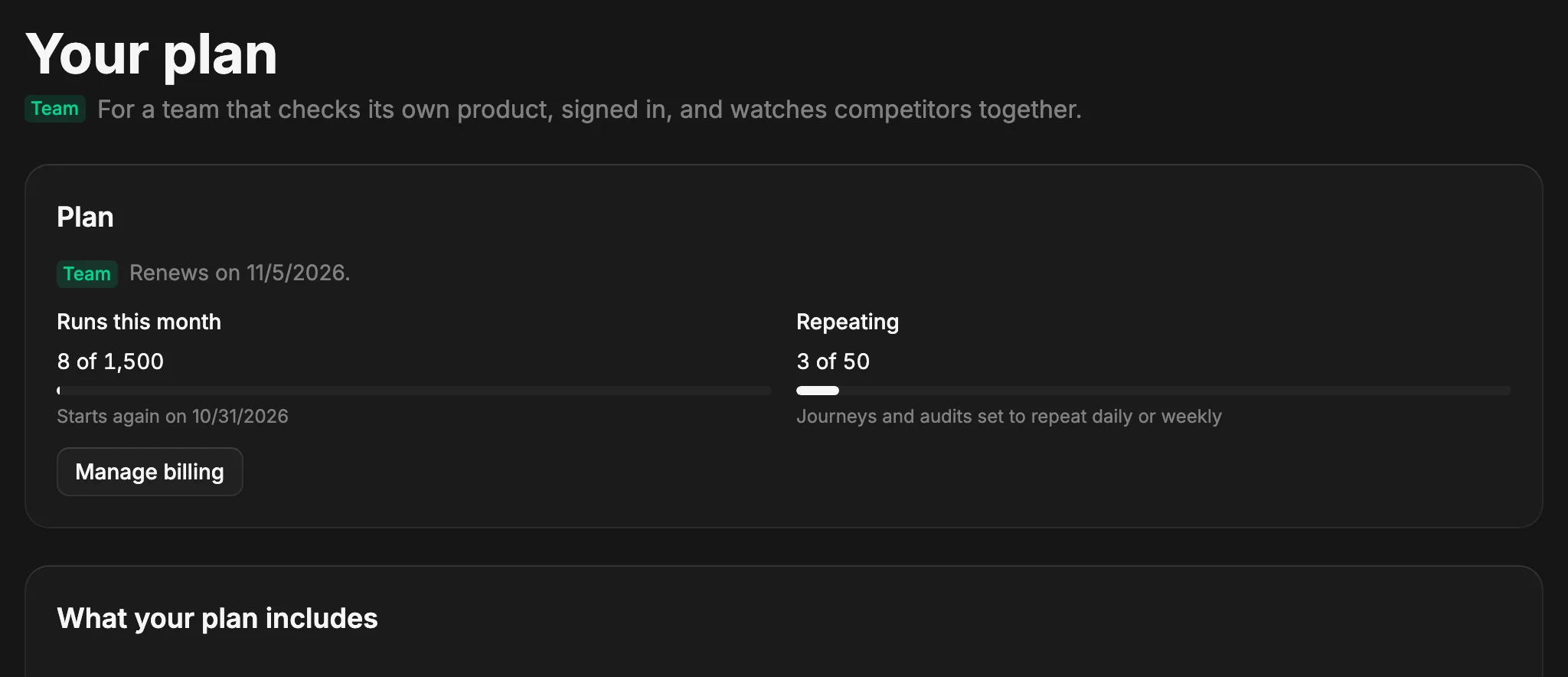
- Plan
- Your plan, when it renews (or ends, if you canceled), and Upgrade or Manage billing. Upgrading opens checkout; Manage billing is where you change plans, update a card, or cancel.
- Runs this month
- Runs started since the 1st, against your plan’s runs a month. Starting a journey or audit, Run again, and repeats all count; a run on several devices counts once. They start again on the 1st. A workspace’s runs count toward its owner’s plan, and share how many go at once.
- Repeating
- Journeys and audits switched on to repeat daily or weekly, against how many your plan allows.
- What your plan includes
- Every feature, checked when your plan has it, or naming the plan that does. Below it, what each plan above yours would add.
Sign in to your own site
With Team and up, a journey or audit can sign in before it starts, so you can check the pages your customers see once they’re in: onboarding, settings, the dashboard. In the New journey or New audit dialog, open Sign in to the site. To change it later, choose Sign in to the site… in the journey’s ⋯ menu.
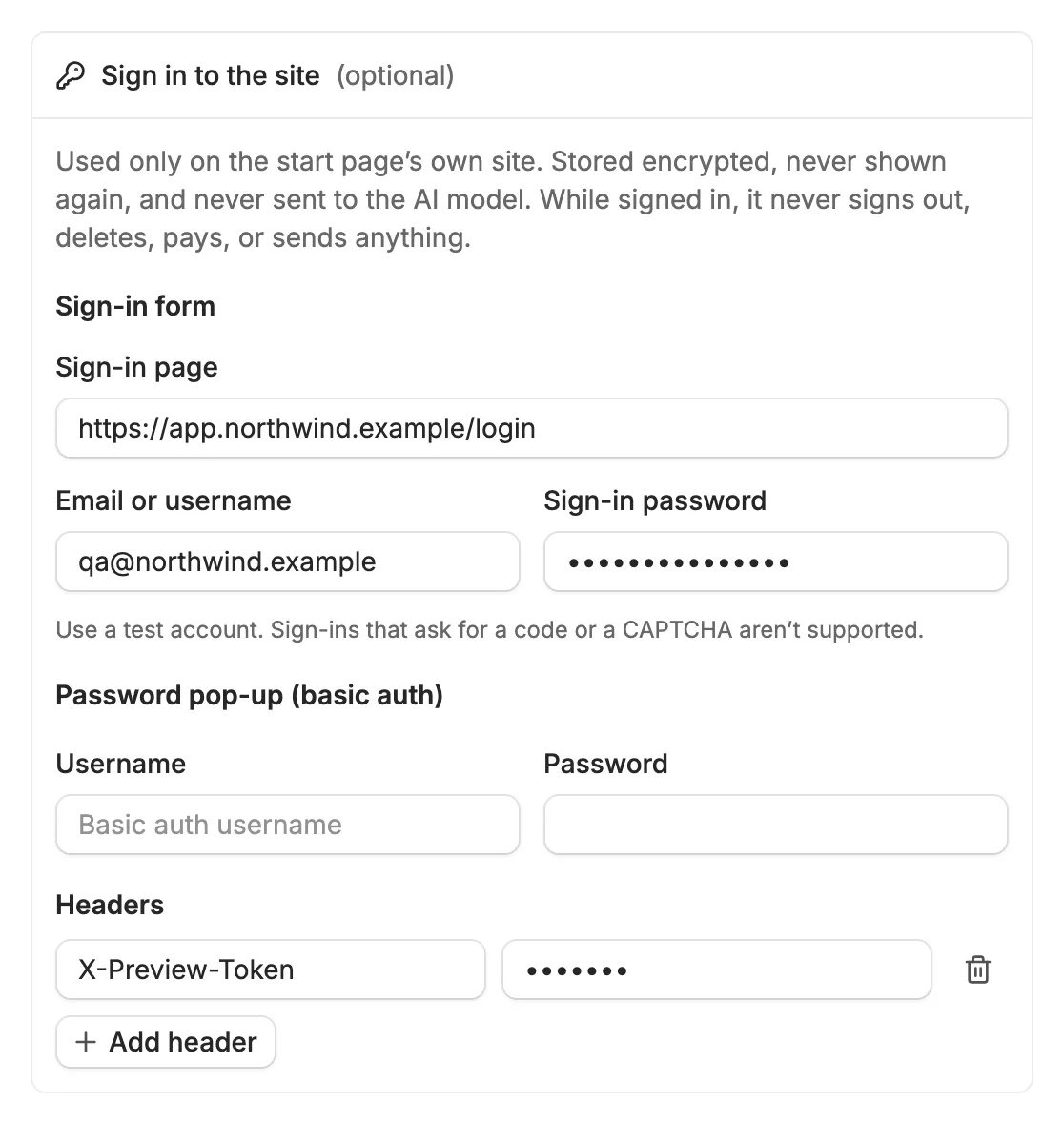
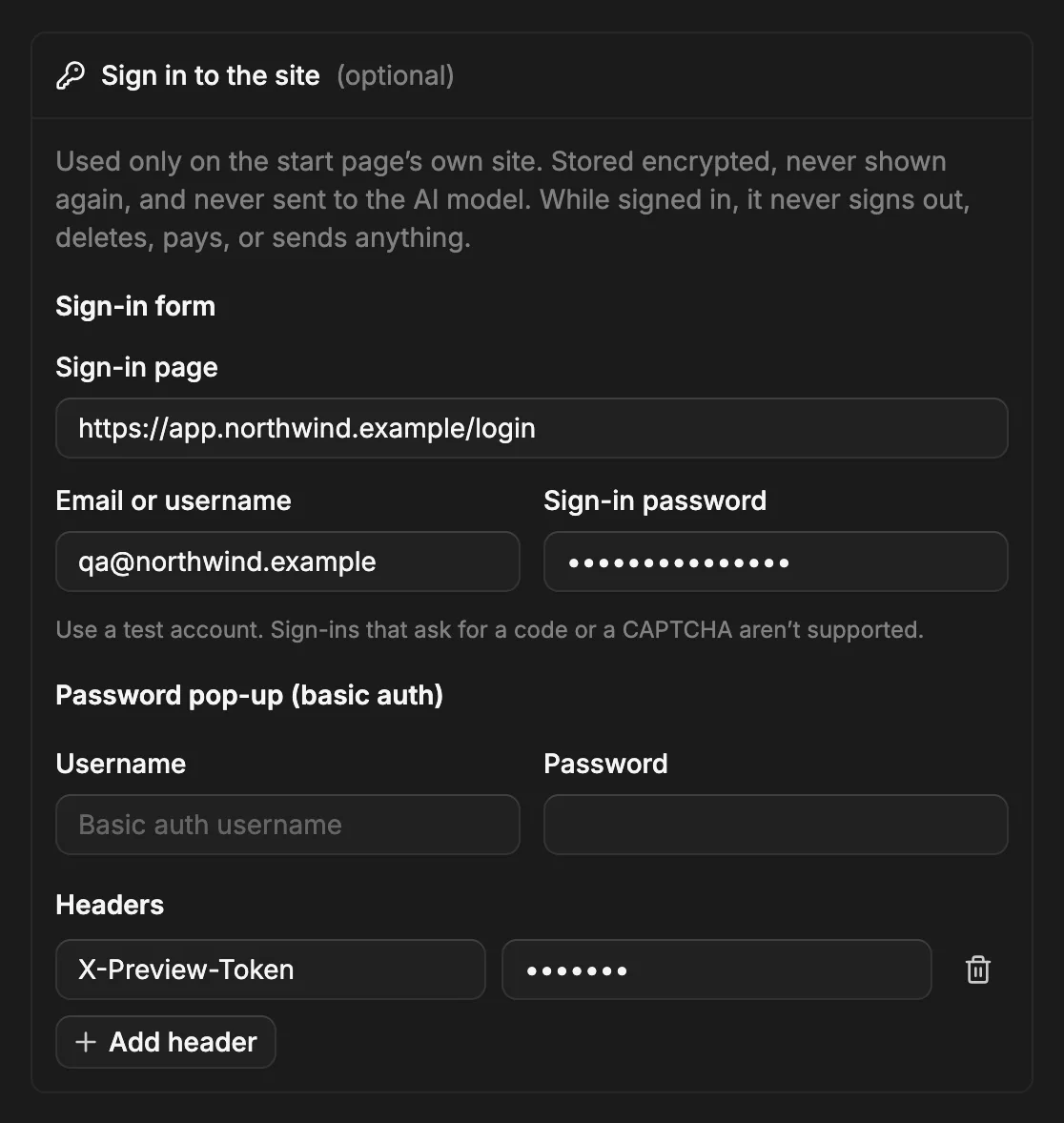
- Sign-in form
- The sign-in page’s address, plus an email or username and a password. Before it starts, the journey opens that page, fills in the form, and signs in, then browses signed in. The page has to be on the same site as the start page.
- Password pop-up (basic auth)
- For a staging site that asks for a username and password in a browser pop-up before it shows anything.
- Headers
- Up to 5, such as a token that gets you past a preview deployment’s protection.
How it keeps the account safe
- Use a test account
- A journey sees what that account sees. Give it an account made for testing, not your own.
- It only looks
- While signed in, it never clicks or follows anything that signs out, deletes, cancels, pays, upgrades, invites, sends, or submits.
- Only on your site
- The details go only to the start page’s own site. Other sites a page loads from never see them, and neither does the AI model that chooses where to click.
- Kept secret
- Stored encrypted and never shown again. The journey’s page only says how it signs in, like “Behind a login: signs in at app.example.com/login”. Forks don’t copy it.
- What it can’t do
- Sign-ins that send a code, need a CAPTCHA, or go through another company’s single sign-on page. A sign-in that fails stops the run and says why.
Start a team
A workspace is a shared space for journeys, audits, collections, and repeats. It comes with Team, one per plan.
- 1
Move to Team
From Plan in the sidebar, choose Upgrade to Team. Checkout takes a card, and you’re back in a moment, on Team.
- 2
Make the workspace
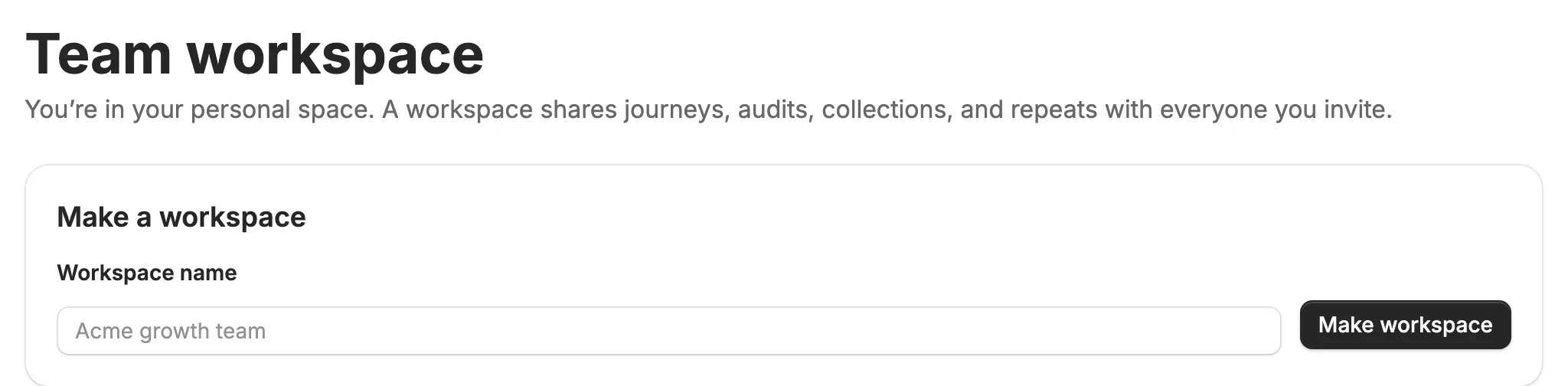
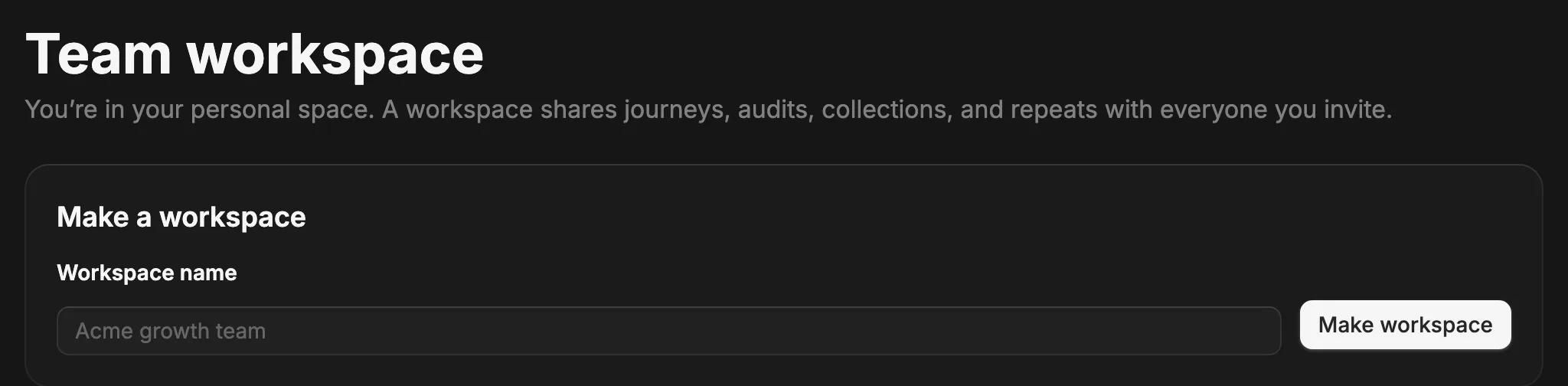
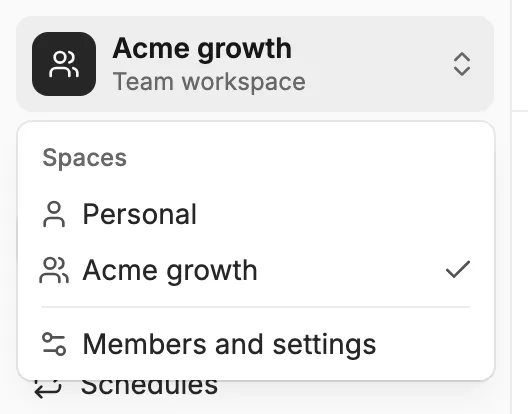
Open the space menu at the top of the sidebar, choose Team workspace, name it, and choose Make workspace. You’re in it straight away.
- 3
Invite your team
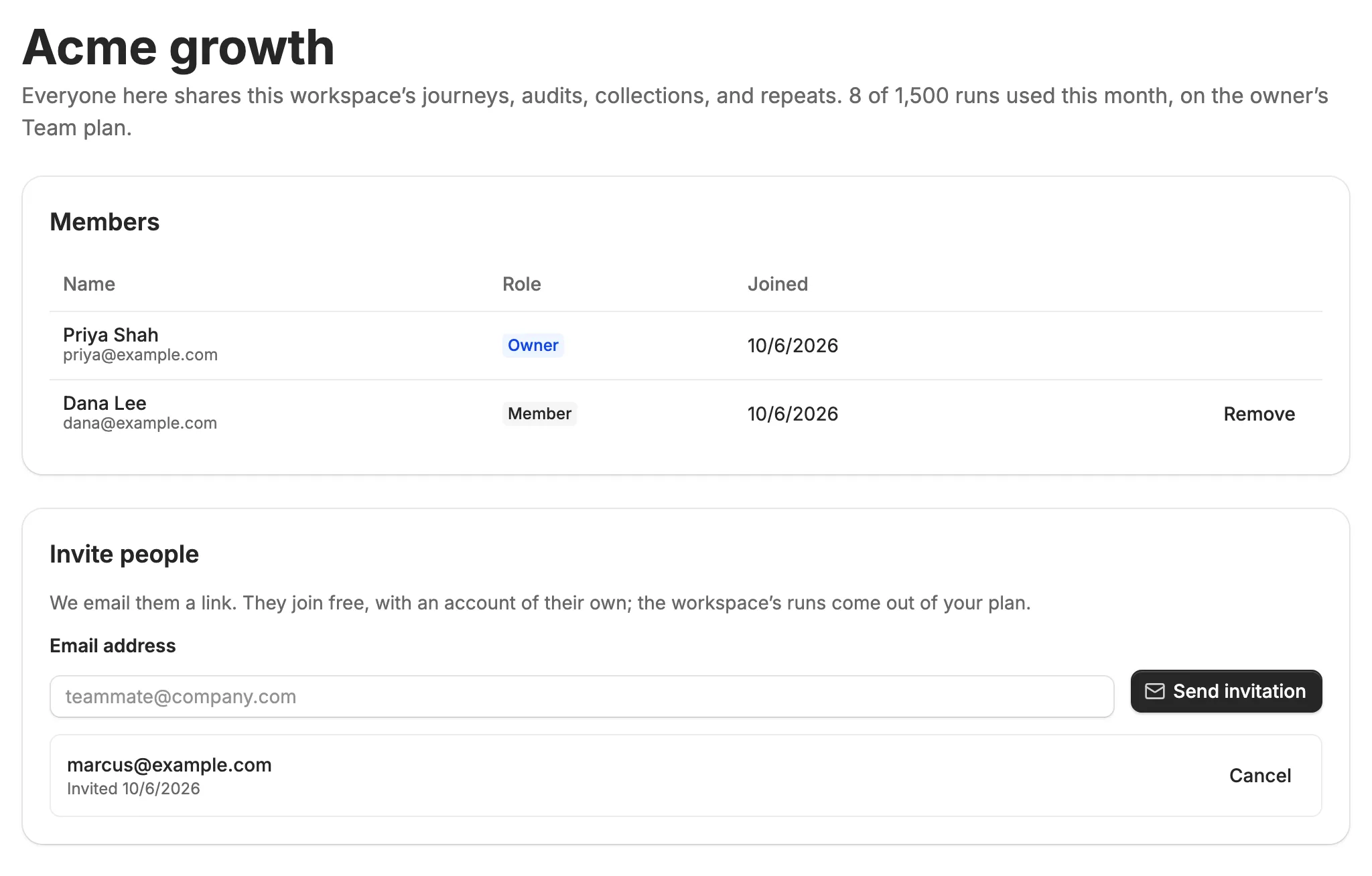
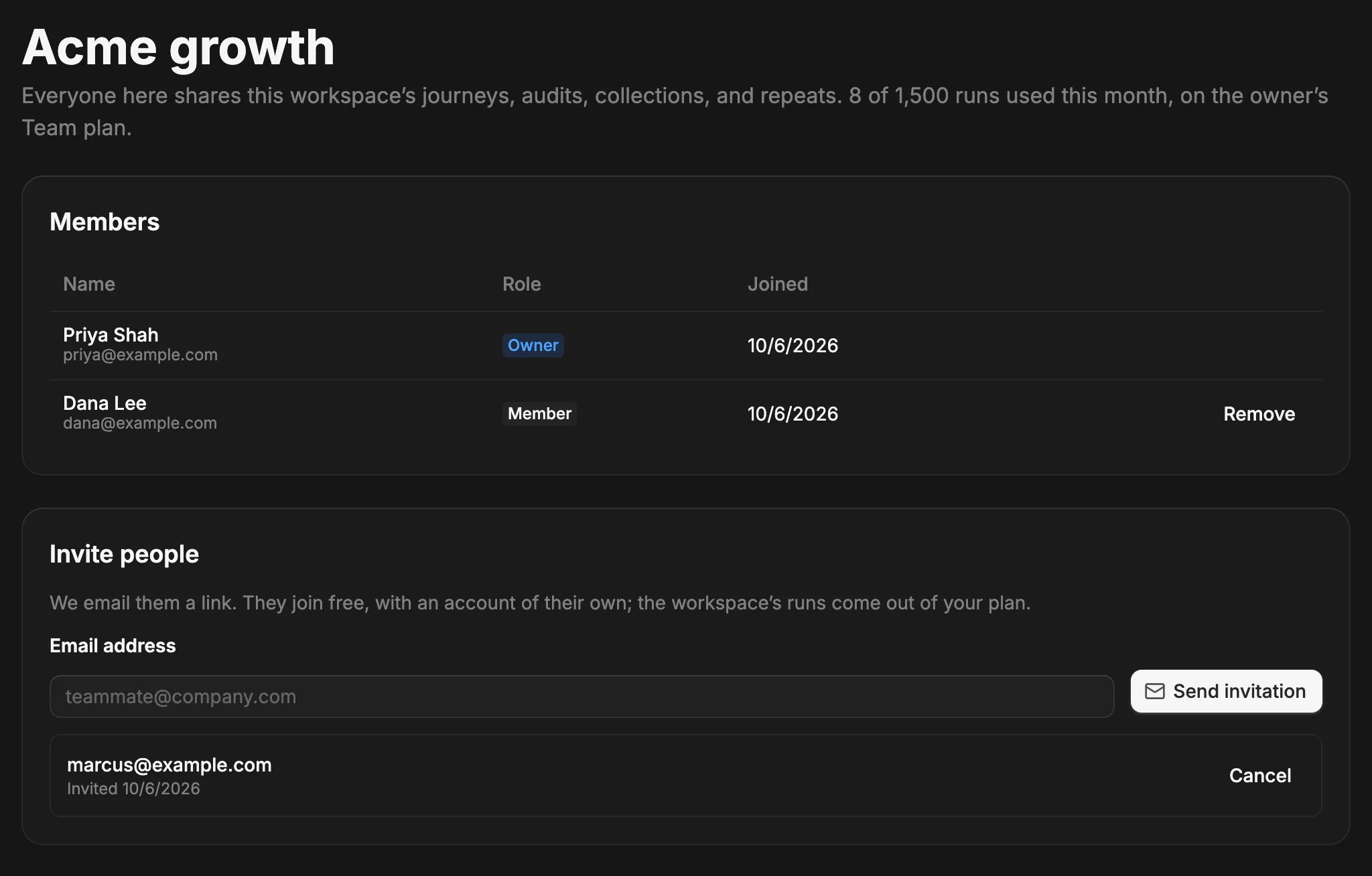
On the workspace’s page (Members and settings in the space menu), type each person’s work email and choose Send invitation. They get an email with a link.
- 4
Start journeys there
Anything you make while the workspace is picked in the space menu belongs to it, and everyone in it sees it.
Join your team
Someone invited you? Here’s what happens next.
- 1
Open the invitation
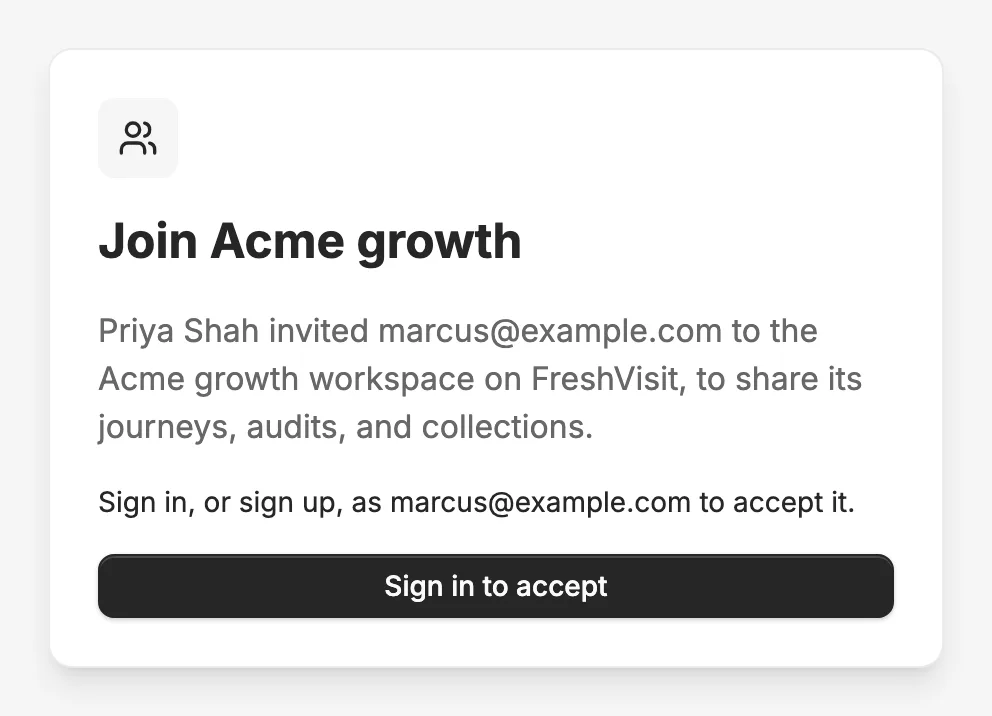
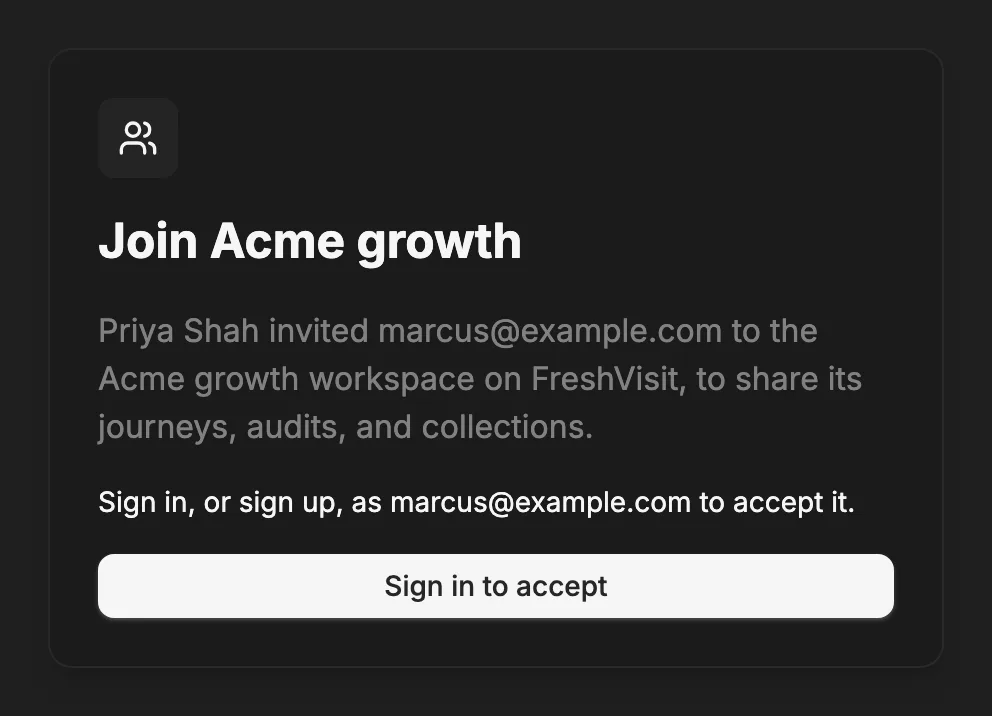
The email says who invited you. Its button opens a page that names the workspace.
- 2
Sign in, or make an account
Use the address the invitation went to. Joining is free; you don’t need a plan of your own.
- 3
Choose Join
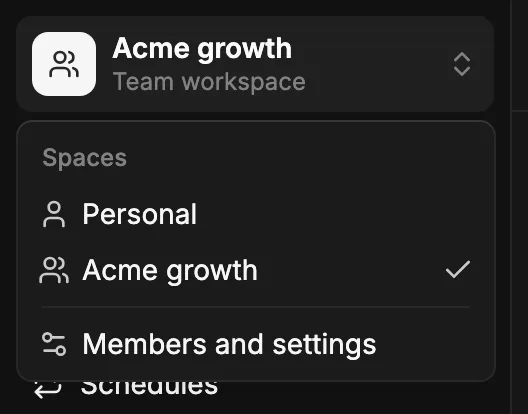
You land on the workspace’s journeys. The space menu shows its name, and switches back to your personal space whenever you like.
- Owner and members
- Whoever makes the workspace owns it: they invite and remove people, rename it, and can delete it. Everyone else is a member, who can open, run, change, and share everything in it, and leave.
- Who pays
- The owner’s Team plan. The workspace’s runs and repeats count toward the owner’s, together with their personal space. Members’ own plans aren’t touched.
- Your personal space
- Stays yours alone. Journeys don’t move between spaces; Fork one to start a copy in the space you’re in.
- Leaving, or deleting it
- A member who leaves loses access; what they made stays with the team. When the owner deletes the workspace, everything in it moves to the owner’s personal space.