MCP for AI assistants
Let your AI assistant test the site, not just write it.
Connect Claude Code, Cursor, Codex, or any assistant that speaks MCP. Ask in plain words and it sends a first-time visitor through your site on our browsers, waits, and reads back the verdict, every step, and a fix for each issue. Every screenshot stays hosted with the run, so your assistant gets links, not files.
An example session, with a real run’s results
- You: Can a first-time visitor find how many days they have to return a car on carmax.com?
freshvisitstart_journey
- start_url
- “carmax.com”
- goal
- “Find out how many days you have to return a car bought from CarMax”
Queued. The journey is waiting for a browser.
freshvisitget_run
- wait_seconds
- 50
Found. Reached the goal in 4 steps.
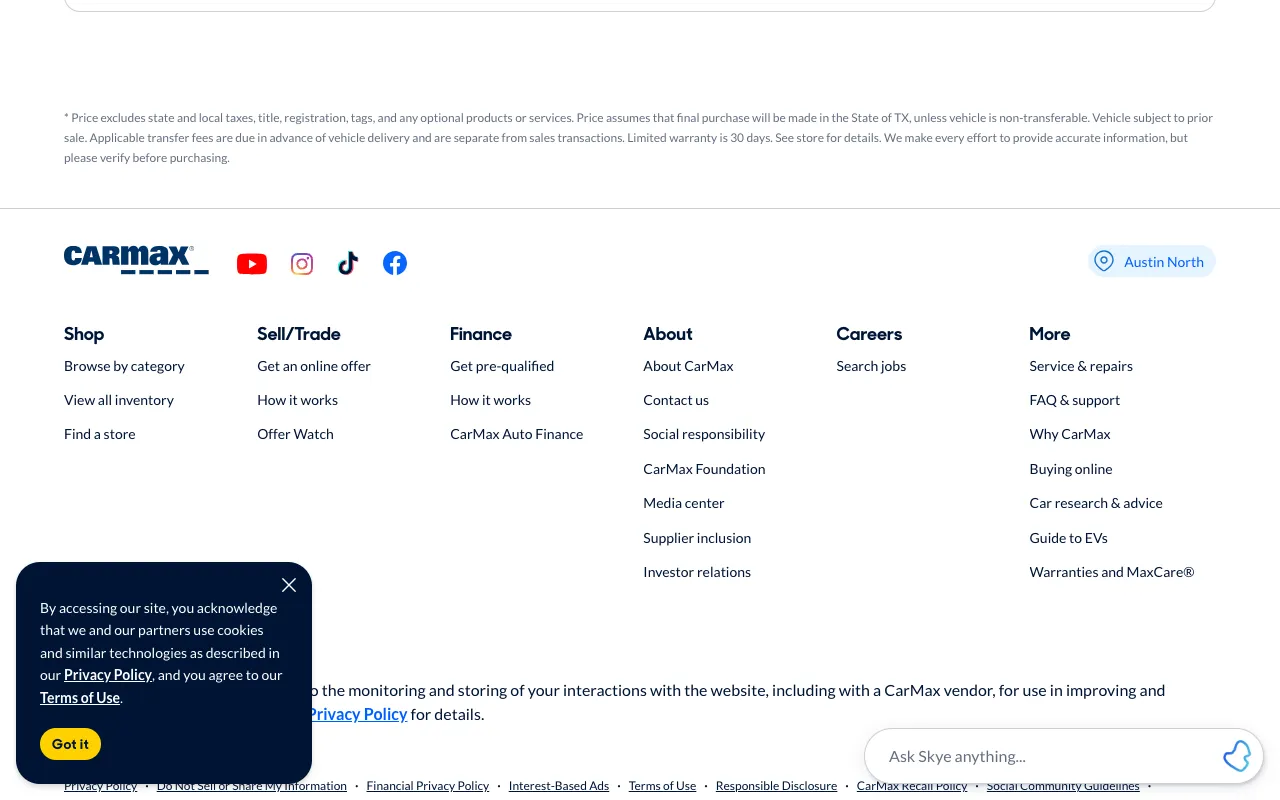
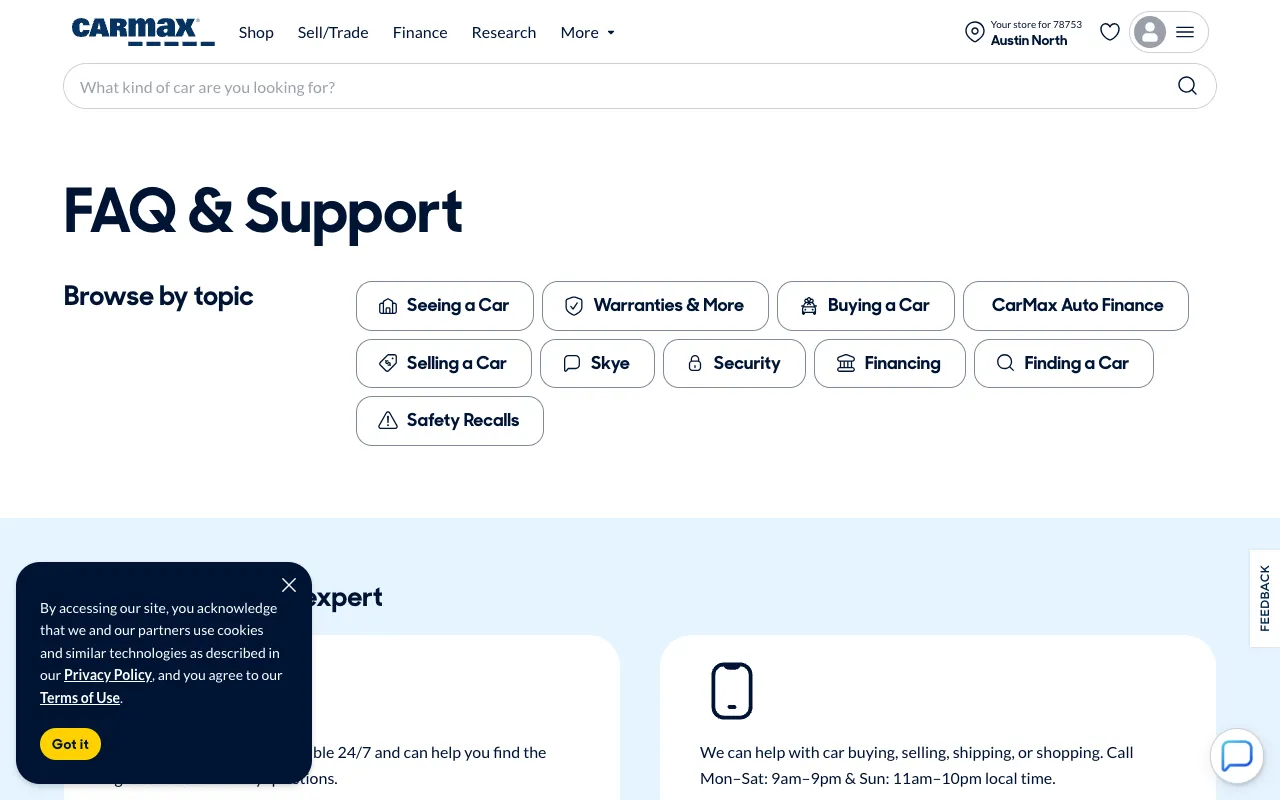
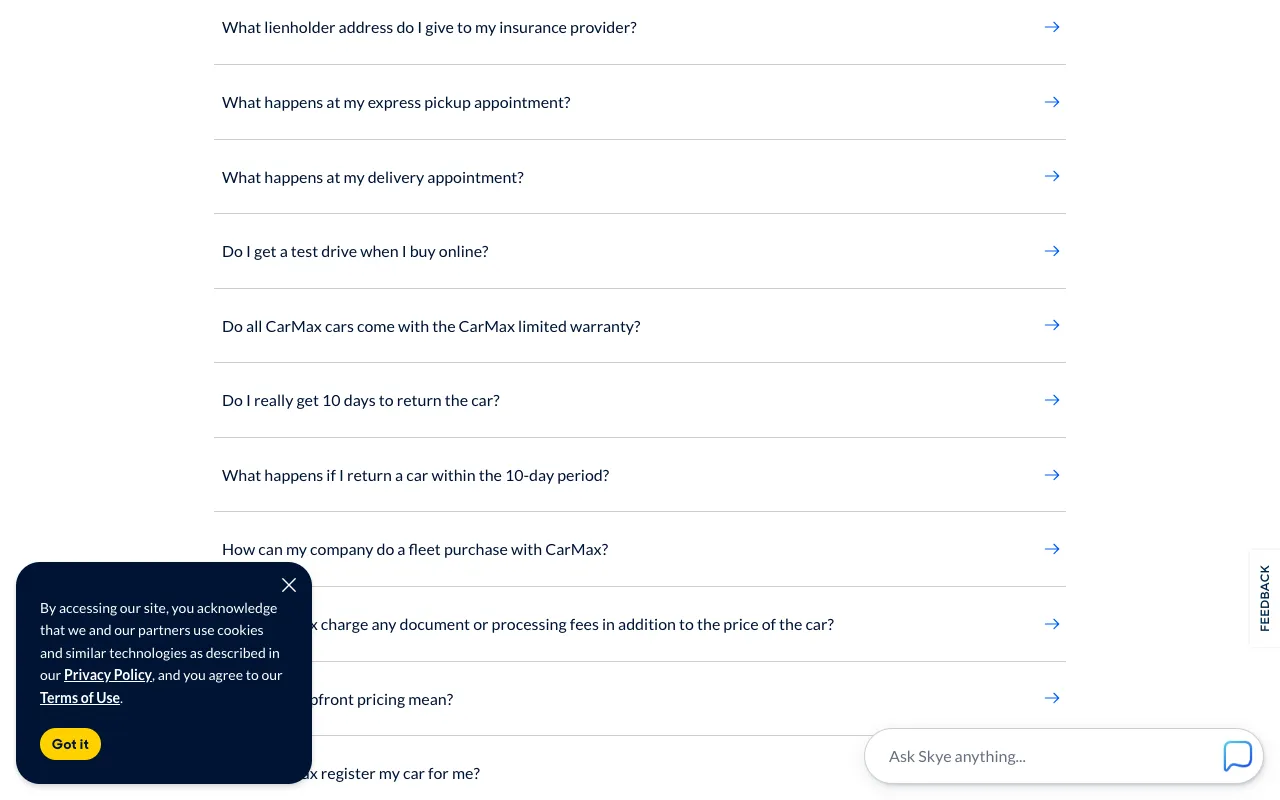
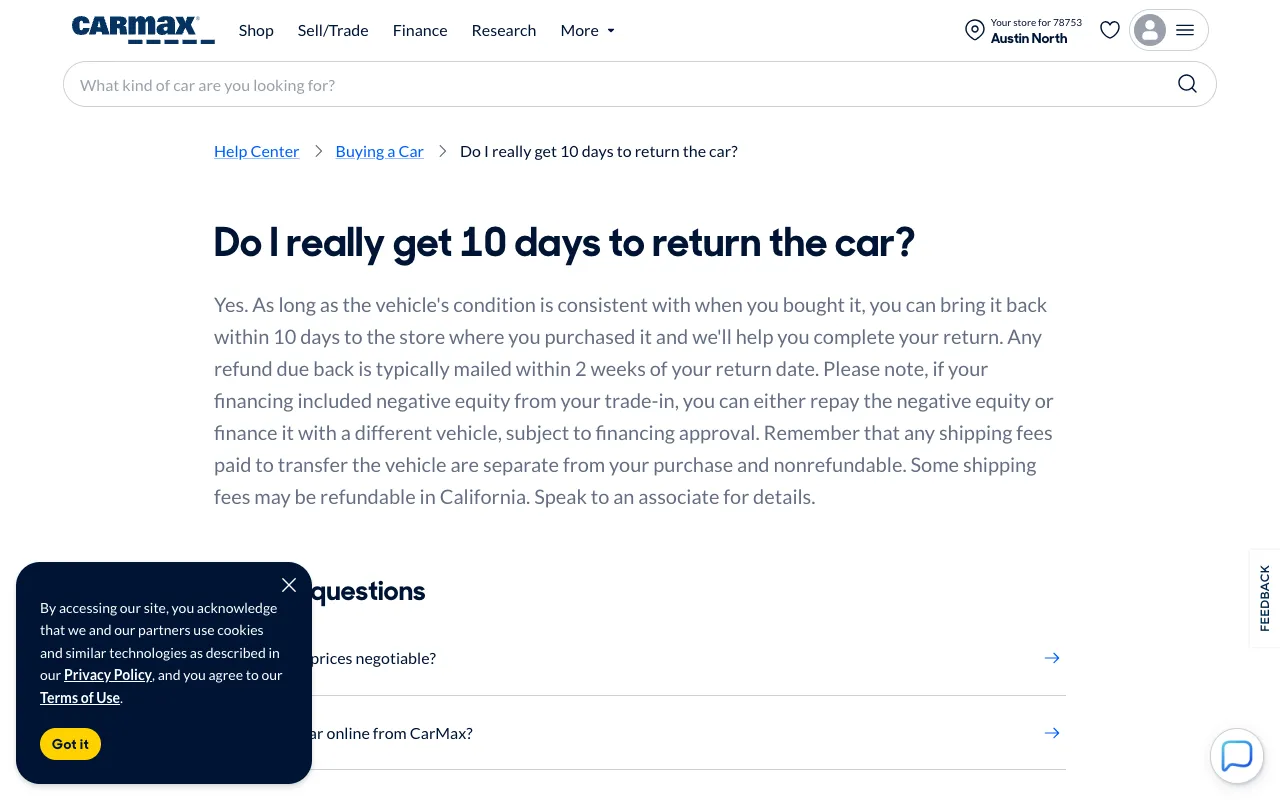
Assistant: Yes, in 4 screens: it clicked “FAQ & support”, then “Buying a Car”, then “Do I really get 10 days to return the car?”, and that page says “You can bring it back within 10 days to the store where you purchased it.” Findability 88 of 100: fairly easy to find.
Your assistant asks. We do the heavy lifting.
Driving a browser from an assistant usually means a local Chrome, a folder of screenshots, and images stuffed into the chat. Here, all of that stays on our side.
The browser
Browsers run on our side
Each run gets its own browser on our servers, as a desktop, a tablet, or a phone. Nothing to install in your terminal, your editor, or CI, and no Chrome window to babysit.
The screenshots
Every screen, kept for you
Screenshots are stored with the run in your account and served from a global image network. Your assistant gets links, so nothing lands in your repo or a temp folder, and there’s nothing to clean up.
The context window
Answers, not pixels
The verdict, the path, and each issue come back as compact text. Images stay links your assistant opens only when it wants a closer look, so a long session doesn’t fill up with screenshots.
What it reads
One answer, every screen a link away
When a run finishes, your assistant gets plain JSON: how it ended, a findability score with its reasons, the passage that answers the goal, and every step with the click it made and a link to its screenshot. This is the CarMax run, as your assistant reads it.
get_run answer, trimmed{
"run": {
"status": "Found",
"done": true,
"outcome": "Reached the goal in 4 steps.",
"answer": {
"text": "You can bring it back within 10 days to the store where you purchased it",
"url": "https://www.carmax.com/faq/buying-a-car/do-i-really-get-10-days-to-return-the-car"
},
"findability": {
"score": 88,
"outOf": 100,
"label": "Fairly easy to find",
"reasons": [
"Found in 4 steps (-12)",
"No dead ends"
]
},
"steps": [
{
"index": 0,
"url": "https://www.carmax.com/",
"title": "CarMax - Shop for used cars, then buy online or at a store",
"action": "Clicked link “FAQ & support”",
"screenshotUrl": "https://www.freshvisit.app/landing/carmax-return-00.webp"
},
{
"index": 1,
"url": "https://www.carmax.com/help-center",
"title": "Find all the different ways to get help at CarMax",
"action": "Clicked link “Buying a Car”",
"screenshotUrl": "https://www.freshvisit.app/landing/carmax-return-01.webp"
},
{
"index": 2,
"url": "https://www.carmax.com/faq/buying-a-car",
"title": "Buying a car",
"action": "Clicked link “Do I really get 10 days to return the car?”",
"screenshotUrl": "https://www.freshvisit.app/landing/carmax-return-02.webp"
},
{
"index": 3,
"url": "https://www.carmax.com/faq/buying-a-car/do-i-really-get-10-days-to-return-the-car",
"title": "Do I really get 10 days to return the car?",
"answer": "You can bring it back within 10 days to the store where you purchased it",
"screenshotUrl": "https://www.freshvisit.app/landing/carmax-return-03.webp"
}
],
"url": "https://www.freshvisit.app/journeys/example?run=example"
}
}6 tools
The whole app, as tools your assistant can call
Start journeys, Explores, and audits, run them again, wait for them, and read back what they found. You never name a tool: ask in plain words and your assistant picks the right one.
start_journeyStarts a goal journey (“find the refund policy”) or, without a goal, an Explore. Pick the devices and the most steps.
start_auditStarts an audit: accessibility, search, and style checks on every page it reaches. Either check can be switched off.
run_againRuns a journey or audit you already have once more.
get_runHow a run went: the verdict, every step, the answer, and what changed since the run before. It can wait up to 50 seconds at a time for a run that’s still going.
get_audit_findingsEvery issue an audit found: accessibility and style issues with the elements and their CSS selectors, search issues with what each page says, and a prompt to fix each one.
list_journeysYour journeys and audits, newest first.
Things to ask
Findability
“Can a first-time visitor find the refund policy on example.com, on a phone?”
After a release
“Run my checkout journeys again and tell me which ones changed.”
Fix what it finds
“Audit example.com, then fix the accessibility and search issues it finds in this codebase.”
Competitors
“Compare how many clicks pricing takes on our site and on two competitors’.”
Ship, check, fix, check again
- 1
Ship the change
Your assistant writes it and you deploy it, to a preview or the live site.
- 2
Ask it to check
“Can a visitor still find pricing on a phone?” It starts the journey, waits, and reads back how it went.
- 3
Fix what it finds
Audits come back with each failing element’s selector and markup, and a fix prompt your assistant can act on in the codebase.
- 4
Check again
It runs the same journey or audit again, and the answer says what changed since the run before.
Built in
Made to work alongside you
What your assistant starts is yours too, in the same account, on the same plan.
Every device in one call
Ask for desktop, tablet, and phone, and each one gets its own browser and finds its own way, side by side.
Runs that stick around
Every run is kept, so next week the answer can say what appeared, went away, or changed its wording since this one.
Results your team can open
Everything your assistant starts lands in your Journeys and Audits lists, with every screen, ready to share by link. Name a workspace and it works in your team’s space.
Keys you control
Make a key in Settings for each place it lives. It’s shown once, only a fingerprint of it is stored, and revoking it stops it at once.
Polite on the open web
Public sites only. It stays on the site it was given, never sends a form, and stops at a CAPTCHA instead of getting past it.
A verdict, not a transcript
A goal ends Found, Stuck, or Out of steps within 15 clicks, with a findability score from 1 to 100 and the passage that answers it, so your assistant can report back in a sentence.
Set up
Connected in two minutes
One access key, one command or config entry, and your assistant has every tool above.
- 1
Make an access key
Start free, then create a key in Settings under AI assistants. It’s shown once, so copy it right away.
- 2
Add it to your assistant
In Claude Code it’s the one command shown here. Every other assistant has its own snippet in the setup guide.
- 3
Ask in plain words
“Can a first-time visitor find the refund policy on example.com, on a phone?”
claude mcp add --transport http freshvisit https://www.freshvisit.app/api/mcp \
--header "Authorization: Bearer YOUR_ACCESS_KEY"MCP comes with every plan, Free included.
Runs your assistant starts count like any other: 20 a month on Free. Paid plans start at $19/month.
Questions people with assistants ask
Which assistants does it work with?
Any assistant that connects to a remote MCP server over HTTP and can send a header. The setup guide walks through 11 of them, including Claude Code, Claude, Cursor, VS Code with Copilot, Codex, and Gemini CLI. ChatGPT isn’t supported yet: its connectors only sign in with OAuth, and FreshVisit uses access keys for now.
Does my assistant have to download the screenshots?
No. Each step comes back with a link to its screenshot, stored with the run in your account. An assistant that reads images can open one when it wants a closer look, and nothing is saved to your machine.
How is this different from giving my assistant a browser?
A browser tool hands your assistant a remote control: it decides every click, keeps every screenshot, and has to remember what it saw. FreshVisit runs the whole first visit for it, on several devices at once, with a verdict, a findability score, and audits built in, and keeps every run so the next one can say what changed.
How long does a run take?
Usually one to ten minutes. Your assistant starts a run, then checks back. It can ask to wait up to 50 seconds at a time, so it isn’t asking every second.
Can it check localhost, or a site behind a login?
Start pages must be public, so a preview deploy works and localhost doesn’t. On Team, set up signing in on the journey in the app, and runs your assistant starts again sign in the same way.
Is it a separate product?
No. It’s the same FreshVisit: the same journeys, audits, and plan. Anything your assistant starts, you can open, share, or repeat in the app, and the other way around.
Is my access key safe?
Keys are shown once, stored only as a fingerprint, and revoked from Settings in one click. A key acts as you, so keep it out of files you commit; the setup guide shows how to read it from an environment variable instead.
Your assistant knows your code. Let it see your site.
Make a key, paste one command, and ask whether a first-time visitor can find what they came for.
Start free