Goal journeys
A goal journey is one careful first-time visitor. It starts on the page you give it and clicks toward your goal, keeping a screenshot of every screen, so you see the path and where it breaks.
How it decides where to click
- 1
It reads the screen
On each screen, an AI model reads the page’s text and the links and buttons a screen reader would announce.
- 2
It asks whether the goal is met
If this screen answers the goal, the journey ends here and marks the passage that answers it.
- 3
Otherwise it clicks
It picks the link or button most likely to lead closer, clicks it, and keeps a screenshot with that click outlined.
- 4
It can search the site
When the site has its own search box, searching can be the next step: it types a few words from the goal and chooses among the results. It searches at most 2 times a run, and the site’s search box is the only place it ever types.
- 5
A dead end isn’t the end
When nothing on a screen looks like the way on, it goes back to an earlier page and tries the next most likely link there, or takes its best guess on this one. A click that does nothing opens its link directly. It stops only when nothing left on any page it has seen looks worth a try.
- 6
It clears popups first
When a page loads, it declines the cookie banner (never accepting it) and closes newsletter, promotion, and other popups, so the screenshots show the page. One that won’t close is set aside. A popup that appears later is something it can close itself.
- 7
It stays on the site
A click that lands on another site is undone, and a link that would open a new tab opens in the same one. A CAPTCHA or bot check stops the run instead of being worked around, and a pop-up asking to confirm something is always cancelled.
Start a goal journey
On Journeys, choose New journey, keep the mode on Goal, and fill in the rest.
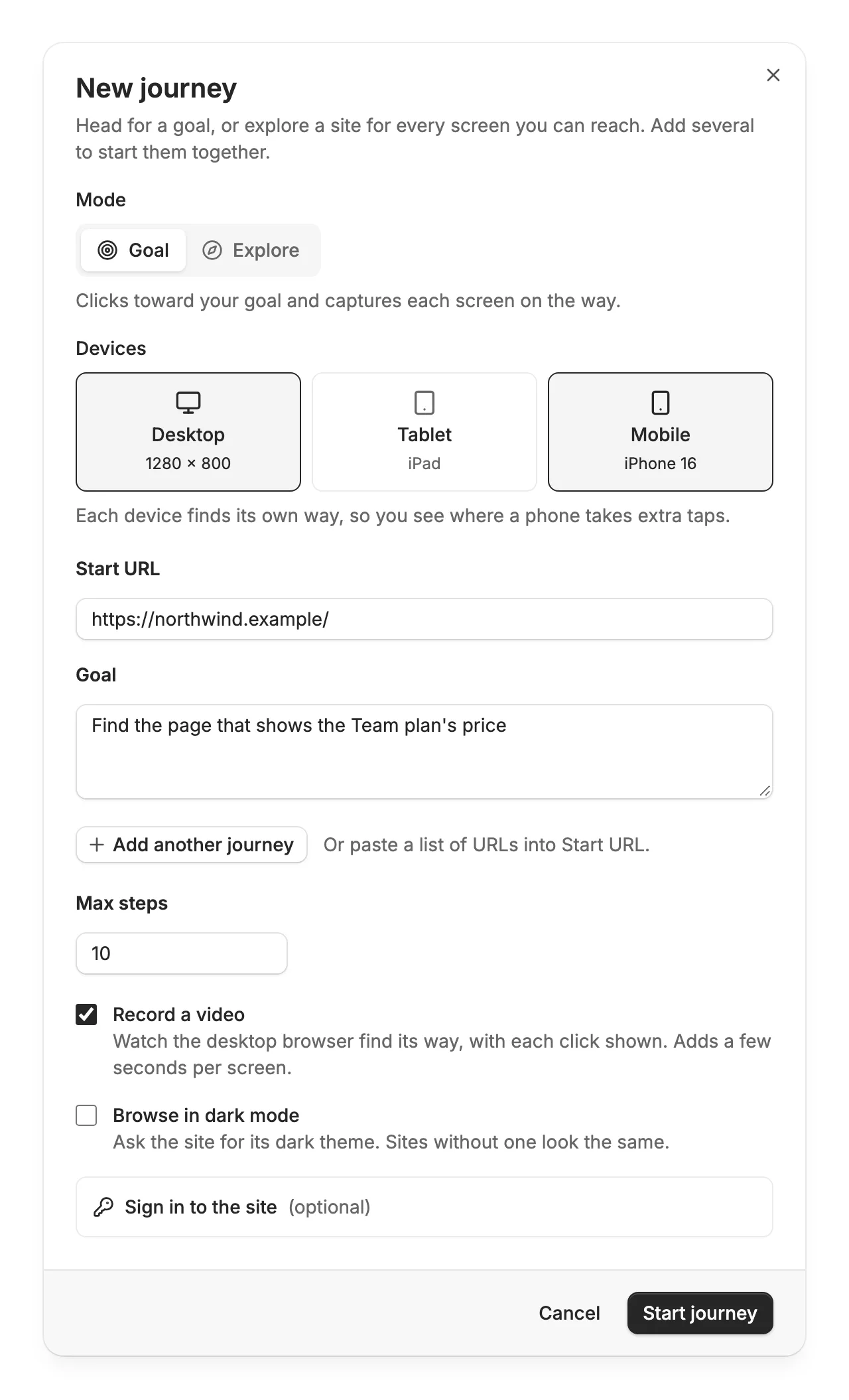
- Devices
- Desktop (1280 × 800), Tablet (an iPad), Mobile (an iPhone 16), or any mix. Each device finds its own way.
- Start URL
- Where a visitor would arrive, usually the home page. Paste several URLs at once to make a row for each. To start signed in to your own site, see Teams and plans (Team and up).
- Goal
- What the visitor came to do, in plain English. While it’s empty, the buttons under it fill in a common one, like Pricing or Cancel a plan. See “Write a goal it can reach” below.
- Max steps
- How many screens it may go through, 10 unless you change it, at most 15.
- Record a video
- On unless you turn it off. Each run records the desktop browser finding its way, with each click shown; it adds a few seconds per screen. It needs Desktop among the devices.
- Browse in dark mode
- Asks the site for its dark theme, the way a visitor’s phone or computer set to dark mode does. Sites without one look the same. Comes with the Pro plan.
- Add another journey
- Start up to 5 at once, each with its own start page and goal. They share the devices and the step limit.
Write a goal it can reach
Write the goal the way a visitor would say it to a friend: one destination, described by what’s on it.
“Find the page that shows the Team plan’s price”
“Pricing” Say what a visitor wants to learn or do, so it knows when it has arrived.
“Find how to cancel a subscription”
“Cancel my subscription” It finds pages: it never sends a form, buys anything, or changes an account.
“Find whether the API has rate limits”
“Find the docs page /api/limits” Describe the content, not the URL or the link to click. Clicking what you name tests nothing.
“Find the support email address”
“Find support, then the FAQ, then contact us” One destination per journey. Start another journey for each task.
Read the result
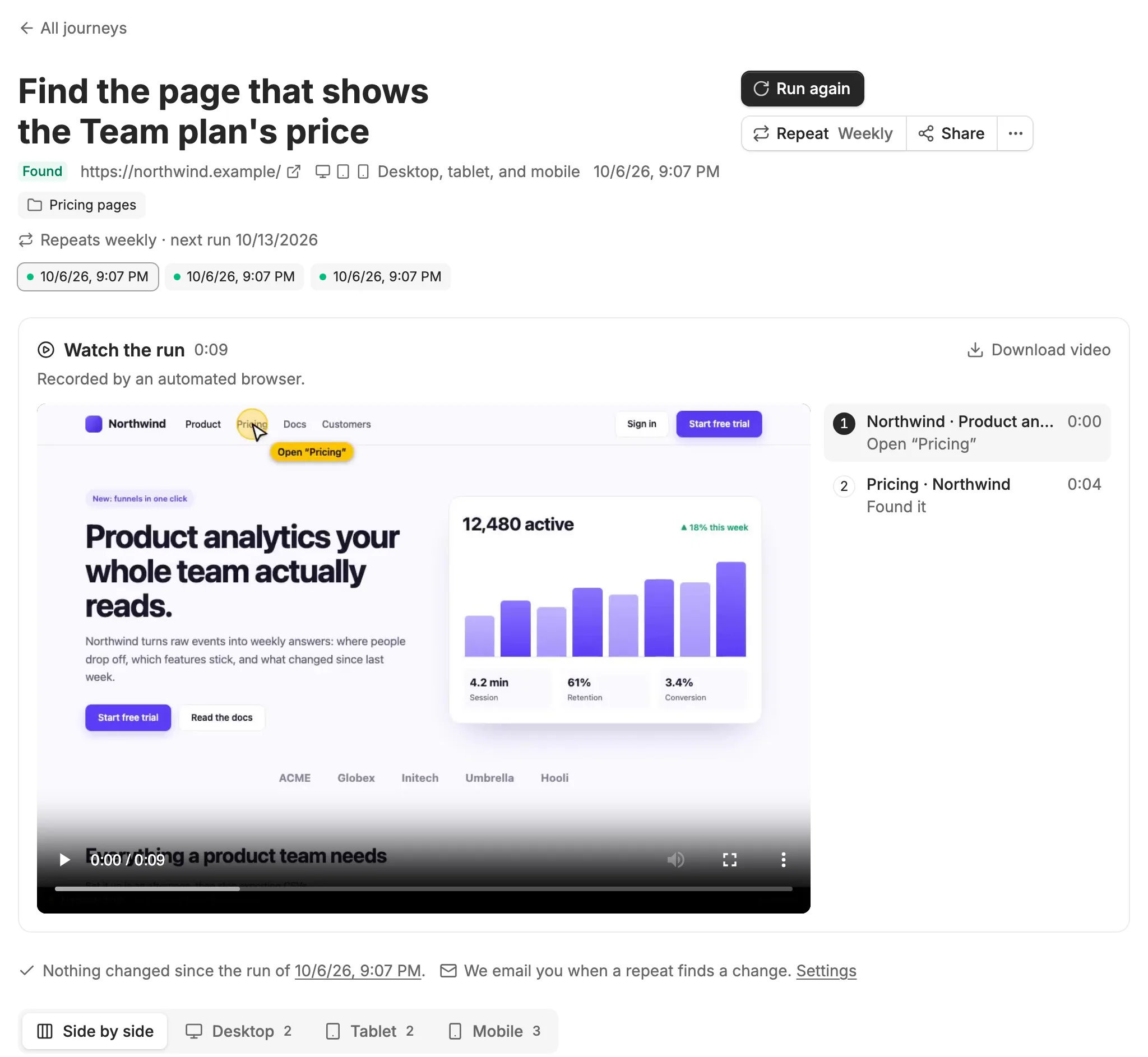
The journey’s page fills in while it runs. Each screen is numbered in the order it was reached.
- Status
- How the run ended, beside the start page, the devices, and when it ran.
- Runs
- One chip per run, newest first. Run again adds a run and keeps the old ones, so you can compare. It waits while a run is still going.
- Searches and dead ends
- A screen it searched from says “Searched the site for” and the words it typed. One it gave up on says “Dead end, so went back to” and the page it returned to, which is the next screen.
- Closest to the goal
- On a Stuck or Out of steps run, the screen that came nearest to answering the goal is marked, with how likely it was rated to be the one. Often it’s the page a visitor should have found.
- Side by side
- On several devices, each device’s path in a row, with how it compares to the desktop: “1 more step than desktop.” The device tabs show one device at a time.
Watch the run
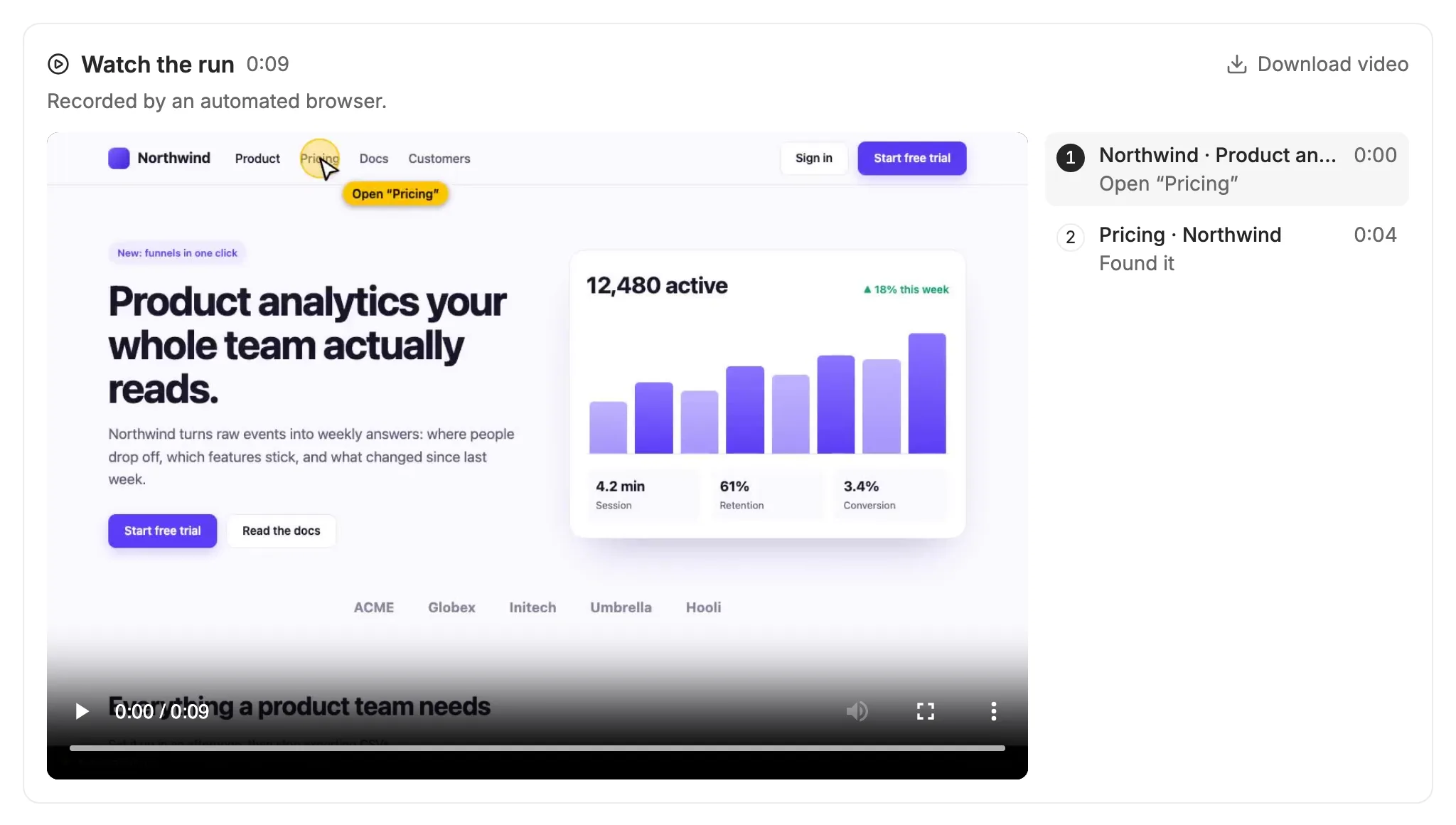
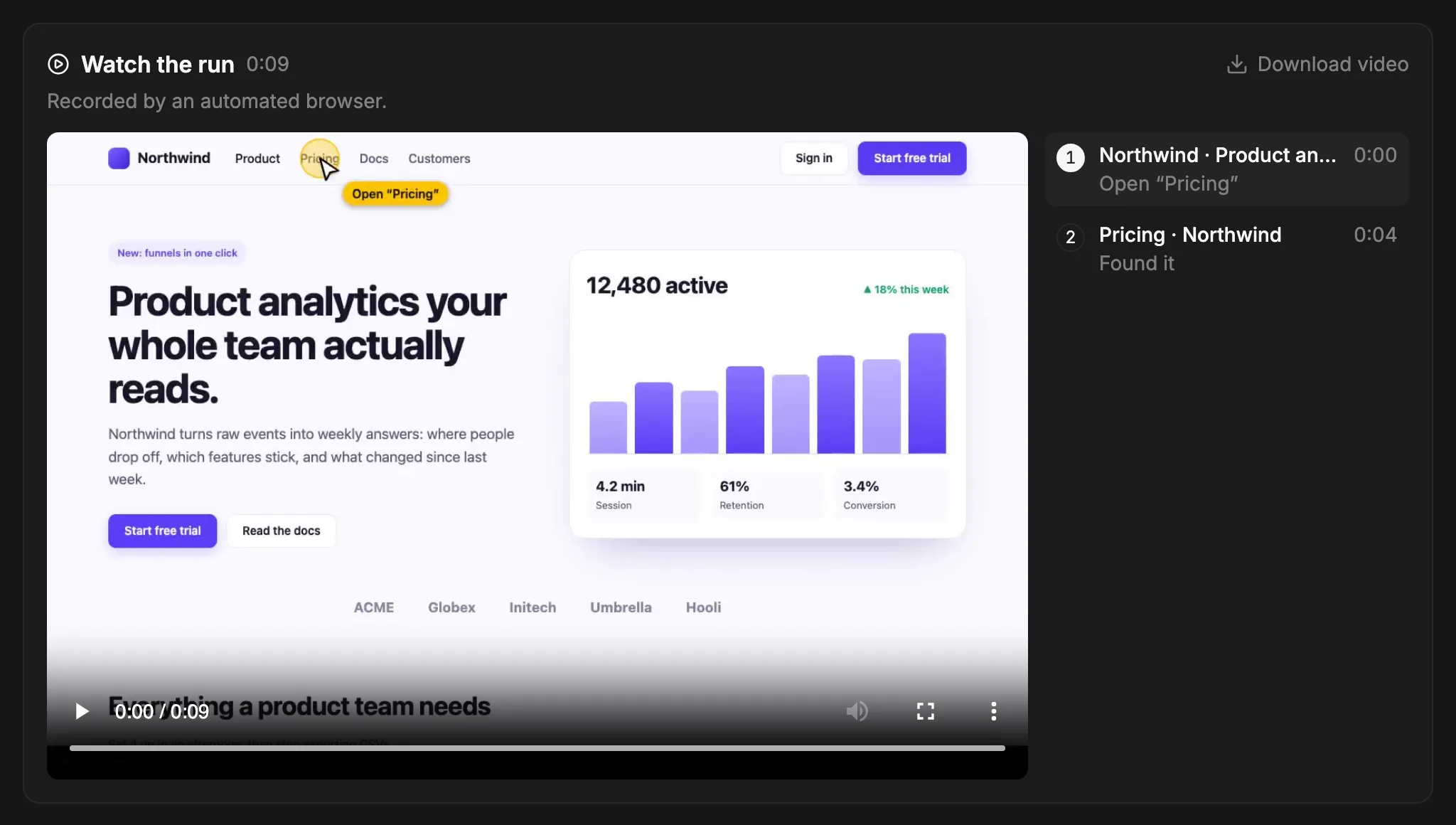
A run with Record a video on has a video at the top of its page: the desktop browser moving through the site the way it did, pages loading and menus opening included. A cursor travels to each link or button and says what it’s about to do, like “Open ‘Pricing’”, and on a Found run it points at the answer. A strip along the bottom says Automated run, so whoever watches it, from a share link or a downloaded copy, knows an AI model drove the browser.
- Chapters
- One per screen, with what was clicked there. The one playing is highlighted.
- While it runs
- Its place holds the latest screen and the screens so far. Once the last screen is in, it says it’s putting the video together, and the video takes the same spot when the run finishes. If it couldn’t be made, the run still has every screen.
- Share links
- Anyone with the run’s share link can watch the video too.
Look closer
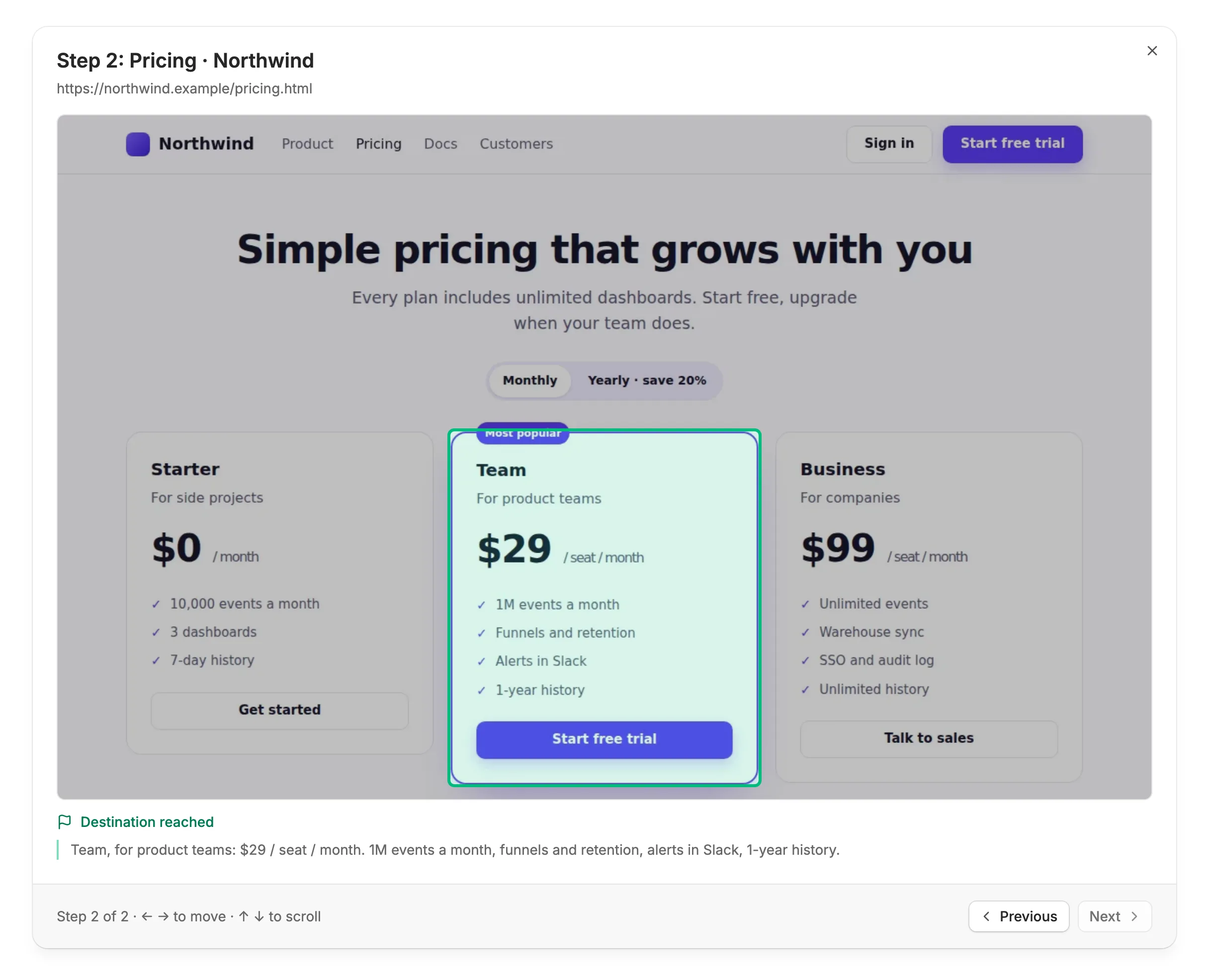
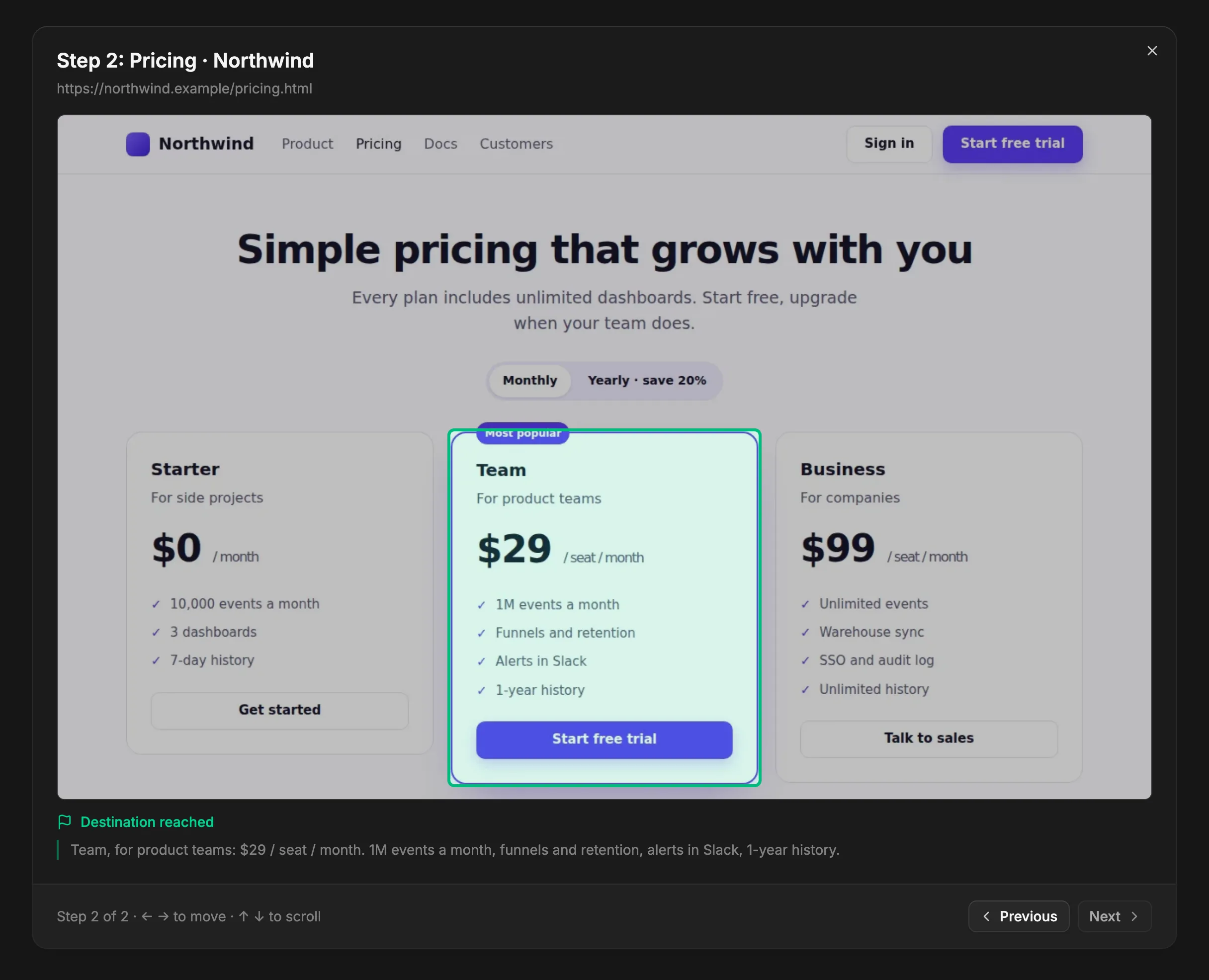
Select any screenshot to open it full size. Use the left and right arrow keys to step through the path, and up and down to scroll a tall screen.
Problems loading a page
Every screen is also checked for what went wrong while it loaded: the page itself was an error page (like Page not found (404)), one of the site’s images, scripts, styles, or fonts didn’t load, or a script failed with an error.
- Nothing to report
- A run with no problems shows nothing extra.
- Above the screens
- One line sums up the run, like “1 of 6 pages had problems”. Open it for a line per page, listed once however many devices it failed on.
- On a screen
- A small warning count in the card’s corner. Open the screen to see each problem under the screenshot: the file that didn’t load, or the error’s message.
- Only the site’s own
- Another site’s ad or tracker that fails isn’t listed, and neither is a request the site turns down on purpose (like “am I signed in?”), so what’s listed is something you can fix.
What each result means
It reached a screen that answers the goal and marked the passage that does.
What to do: Count the steps. More clicks than you expected is a finding too.
Nothing on the last screen, or left untried on the pages before it, looked like it led closer to the goal.
What to do: Read the labels on the last screen: that’s where a visitor gives up. If the goal was vague, choose Reword the goal on the run’s page.
It kept clicking but used up its steps, or its time, before arriving.
What to do: See which labels pulled it the wrong way. If the path really is long, choose Try with 15 steps on the run’s page.
The run couldn’t finish: the start page didn’t open, or a bot check stopped it. The page says which.
What to do: Check that the start URL opens in your own browser without signing in, then Run again.