Organize and share
Journeys and audits pile up quickly. Group them, put the ones you check often on repeat, and send the results to people who’ll never sign in.
Keep things tidy
Everything you can do to one journey or audit lives in the toolbar at the top of its page. The ⋯ menu holds the rest.
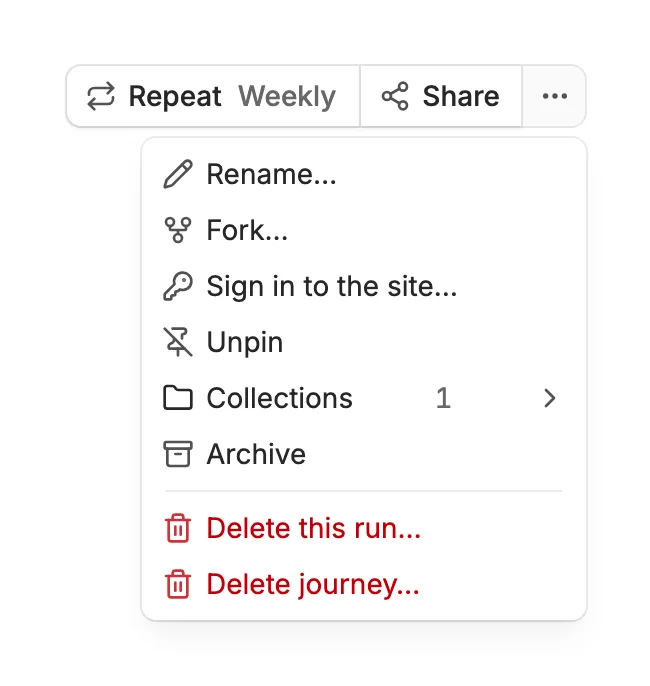
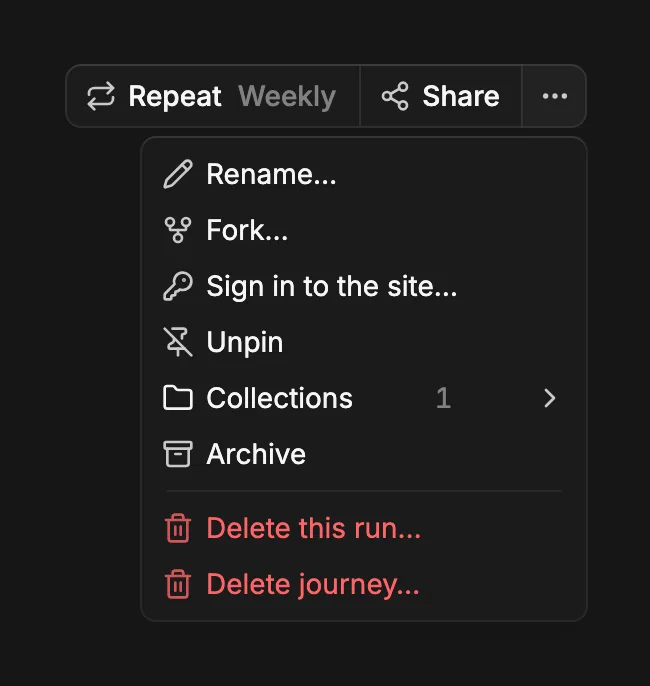
- Rename
- Give it a short name for lists. The goal stays as it was, under the name.
- Fork
- Opens a new journey or audit filled in from this one, to try a reworded goal, more steps, or other devices without touching the original.
- Sign in to the site
- With Team: change or remove how a journey signs in to your site. Saved details are never shown, so replacing them means entering them again. See Teams and plans.
- Pin
- Adds it to Pinned in the sidebar, on top. You can also drag a journey onto Pinned. Drag pins up and down to put them in your order, or right-click one to move it up, move it down, or unpin it.
- Collections
- Adds it to a collection, or takes it out. A journey can sit in several. Make a collection with the + beside Collections in the sidebar.
- Archive
- Moves it out of your main list, to the Archived filter. Its share link keeps working.
- Delete
- Delete the run on screen, or the whole journey with every run. Either one can be undone from the message that follows.
Repeat a journey or audit
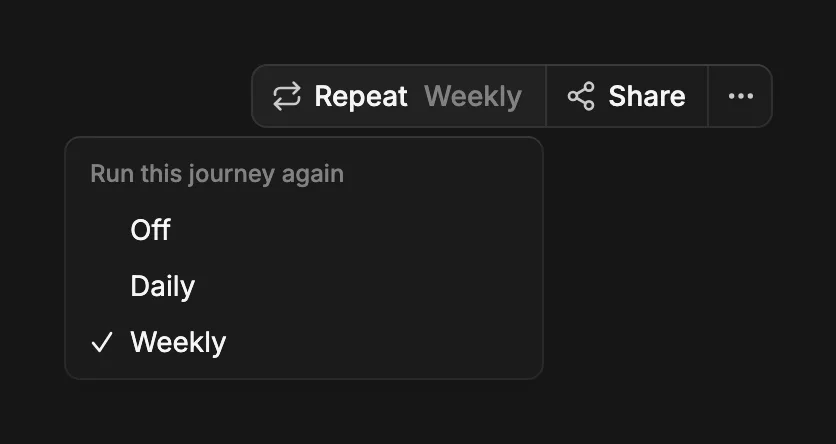
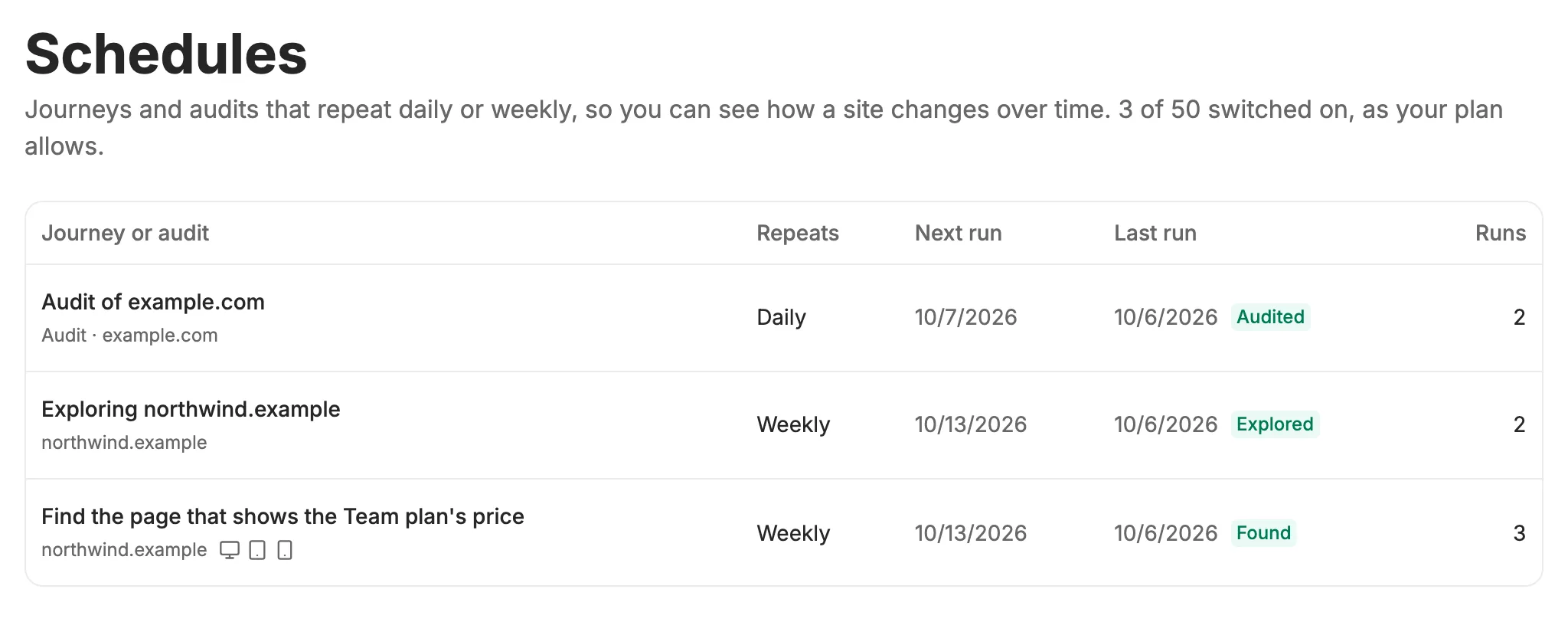
Choose Repeat, then Daily or Weekly. Each repeat is a new run, and every run is kept, so the run history becomes a dated record of the site.
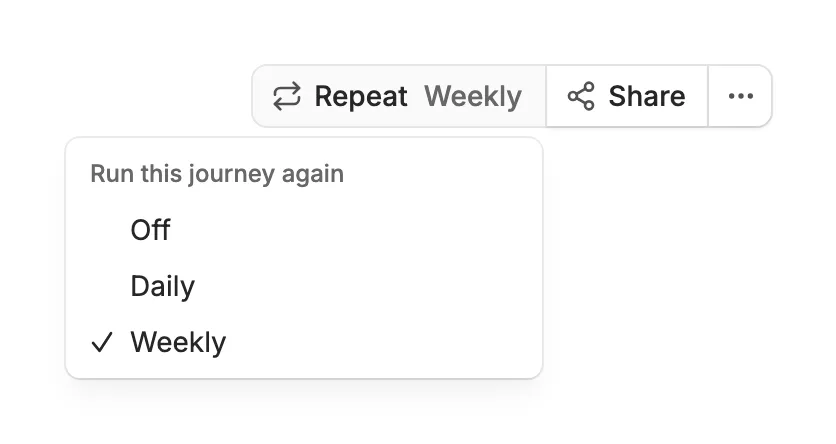
Schedules, in the sidebar, lists everything that repeats and when it runs next. A repeat starts within an hour of its time.
See what changed
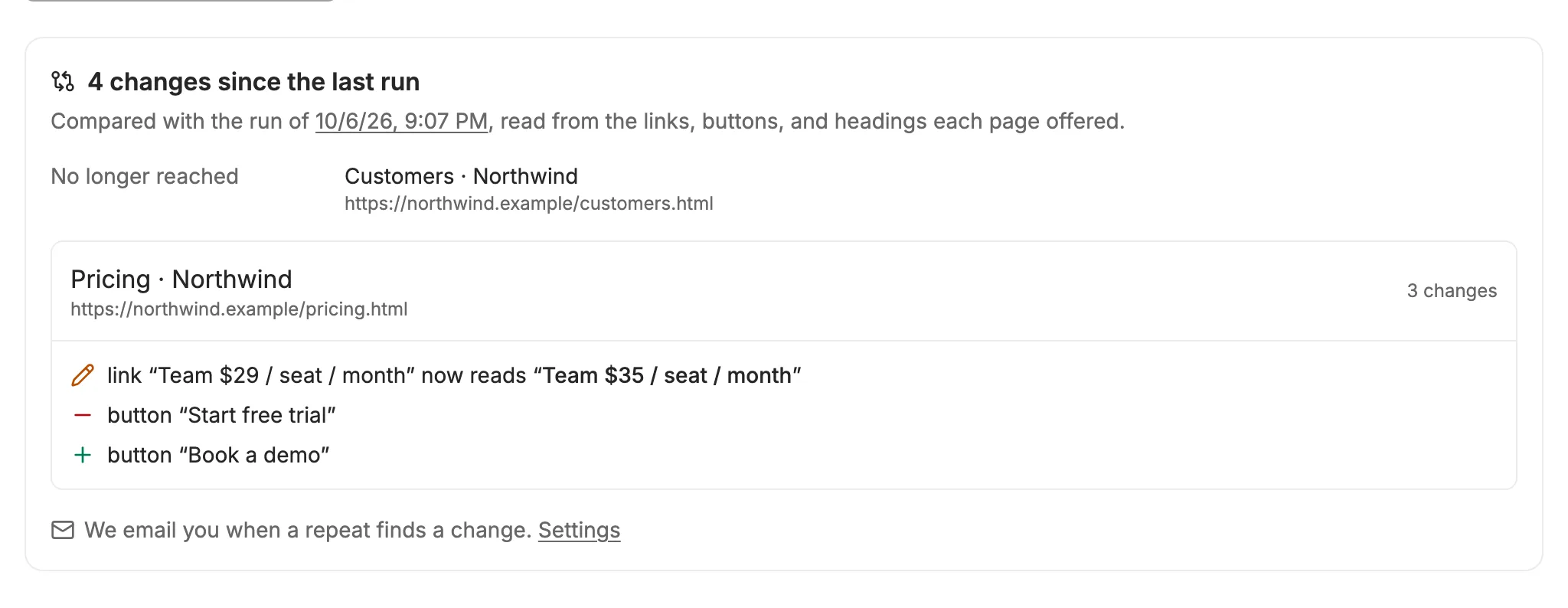
Each finished run is compared with the run before it. Above the screens, the run’s page says what changed, or that nothing did, and each run’s chip counts its changes. The comparison reads what a screen reader would announce on each page, not the pixels, so a new photo isn’t a change but a renamed button is.
- Outcome
- The run ended another way, like Stuck instead of Found, or took more steps to get there.
- Pages
- Pages this run reached that the last one didn’t, and pages it no longer reached.
- On a page
- Links, buttons, headings, and form fields that appeared, went away, or were reworded, like a price going from $29 to $35. Open a page’s row to see them.
- Audit numbers
- On an audit, when the count of accessibility issues or inconsistent styles went up or down.
Work as a team
A team workspace shares journeys, audits, collections, and repeats with the people you invite. Starting one, inviting people, and joining one are in Teams and plans.
Share a link
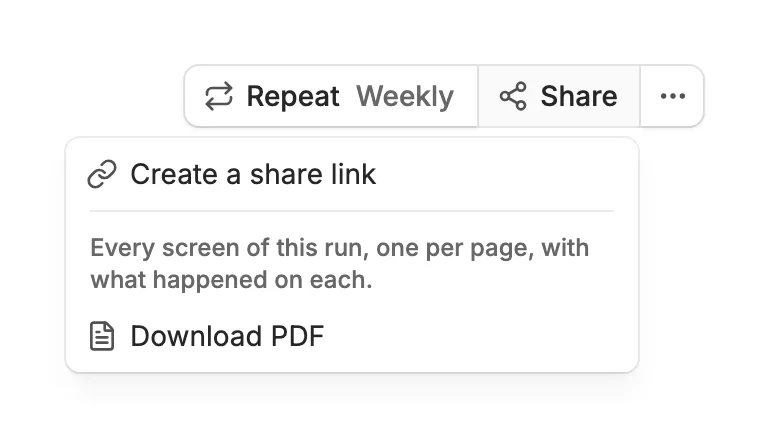
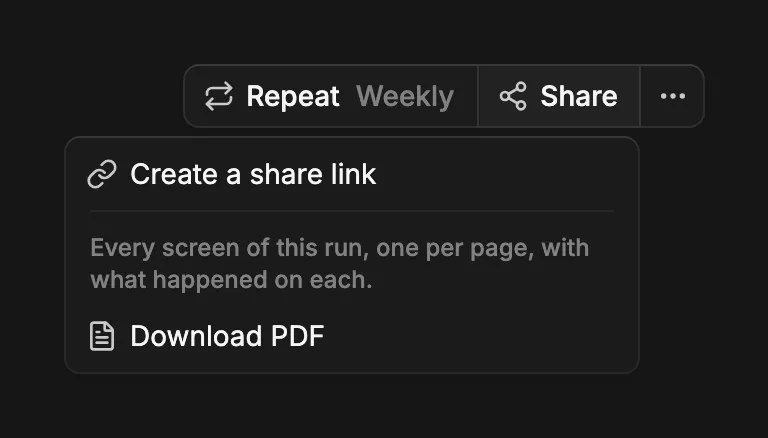
Choose Share, then Create a share link. Anyone with the link sees the latest run and its earlier runs, read-only and without an account, with a goal run’s video when it has one (marked Automated run along its bottom). Stop sharing in the same menu turns the link off at once.
Download a PDF
For a spec, a ticket, or a client, choose Download PDF in the Share menu. It prints the run on screen, so pick the run from the chips first. It takes a moment to prepare, then downloads by itself.
- A journey’s PDF
- A cover with the goal, the outcome, when it ran, and the whole path in a line per screen, then every screen on a page of its own with the click or the answer marked.
- An audit’s PDF
- The verdict and the numbers, every finding with what to fix, then every page scanned with its failing elements outlined. Written for someone who will never open the app.
PDFs come with the Pro plan and up. Compare plans on Pricing, and upgrade from the Plan card in Settings.