Getting started with FreshVisit
FreshVisit browses a website the way a visitor would, in a real browser, and keeps a screenshot of every screen it reaches. Here’s which tool to use, and how to run your first journey.
Three tools, three questions
- Goal journeyCan a visitor find it?Give a start page and a goal in plain English. It clicks toward the goal and keeps every screen on the way.Read the guide
- ExploreWhat does the whole site look like?Give a start page. It follows the site's links and captures up to 24 pages, on every device you pick.Read the guide
- AuditWhat needs fixing?Scans a site like Explore, then checks each page for accessibility issues and styles that break the pattern.Read the guide
Your first journey
- 1
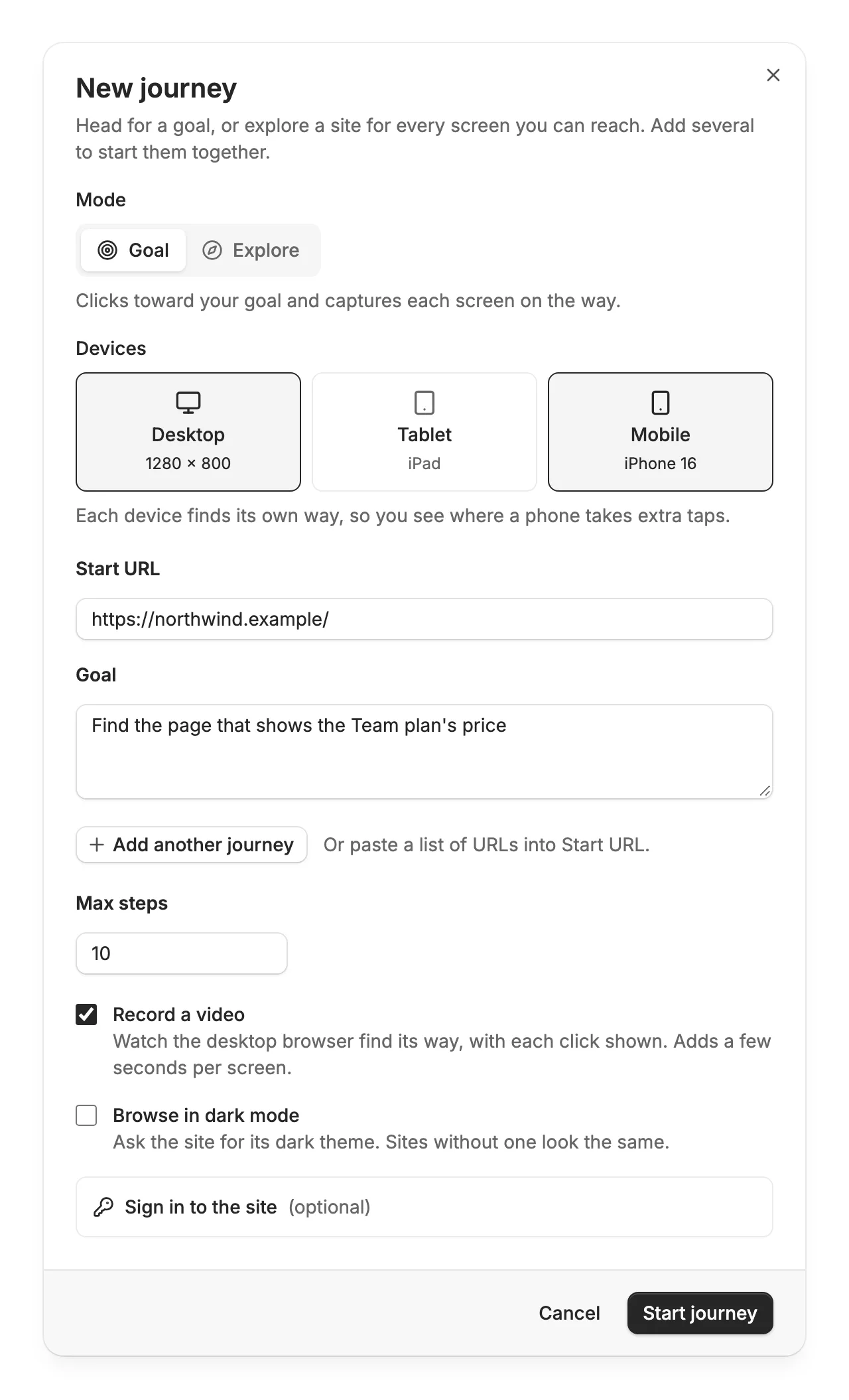
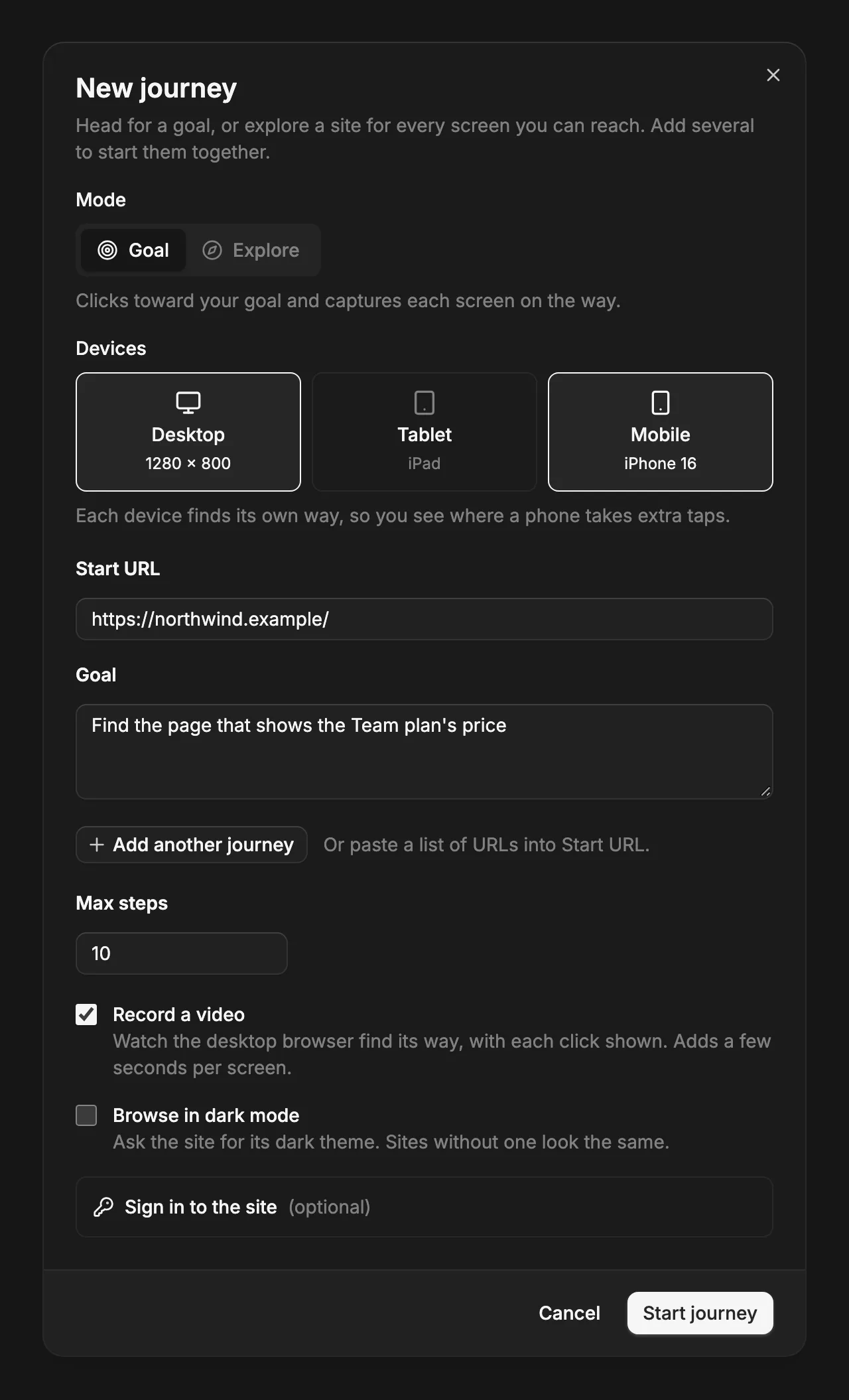
Open the New journey dialog
On Journeys, choose New journey at the top right.
- 2
Give it a start page and a goal
Paste the page a visitor would land on, and write what they came to do, like “Find the page that shows the Team plan’s price.”
- 3
Pick the devices
Desktop is on already. Add Tablet or Mobile to see whether the path changes on a smaller screen.
- 4
Start it and watch the screens arrive
You land on the journey’s page, and each screen shows up as it’s captured. Most journeys finish in a few minutes, and we email you when yours is done.
Find your way around
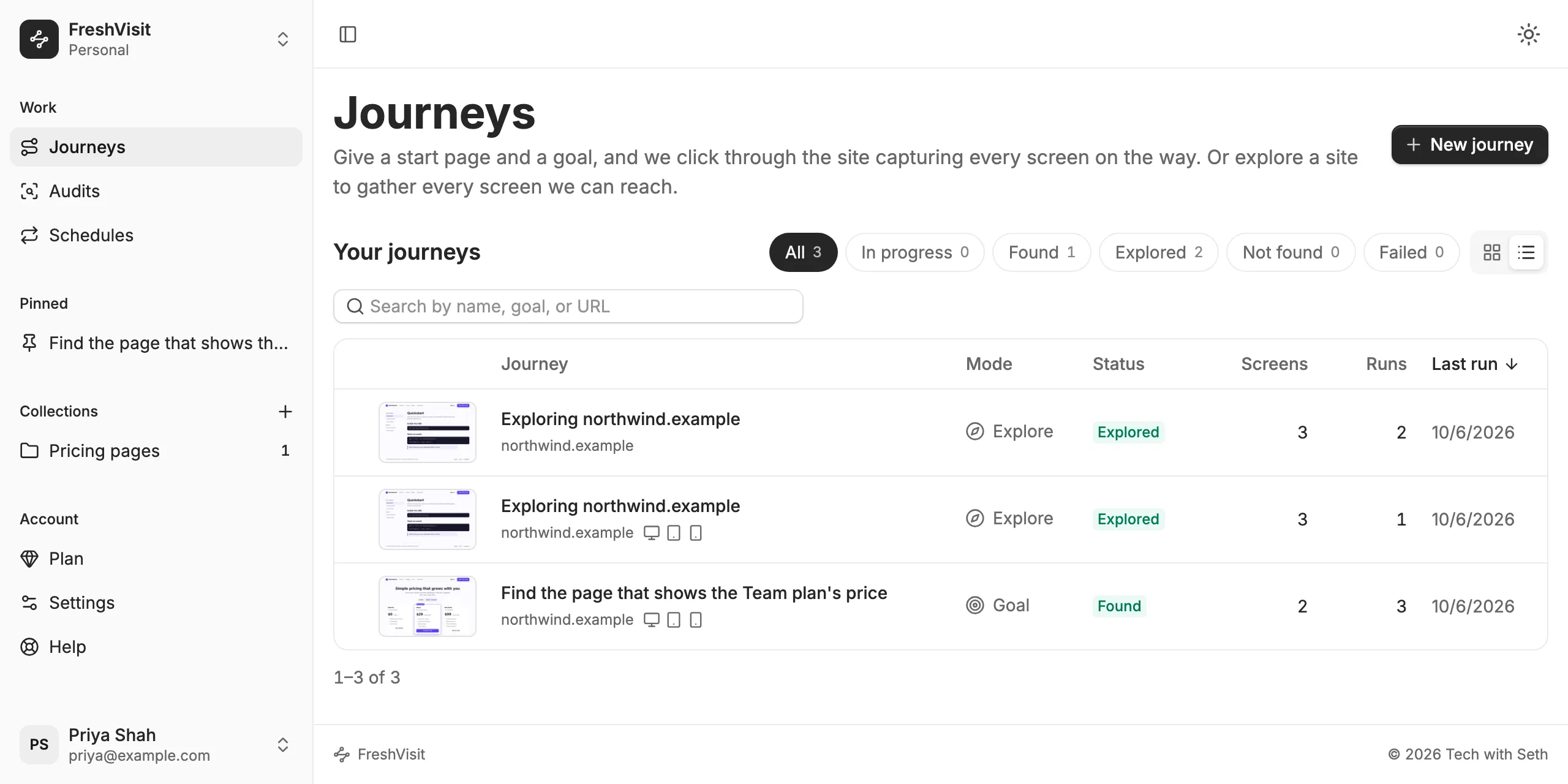
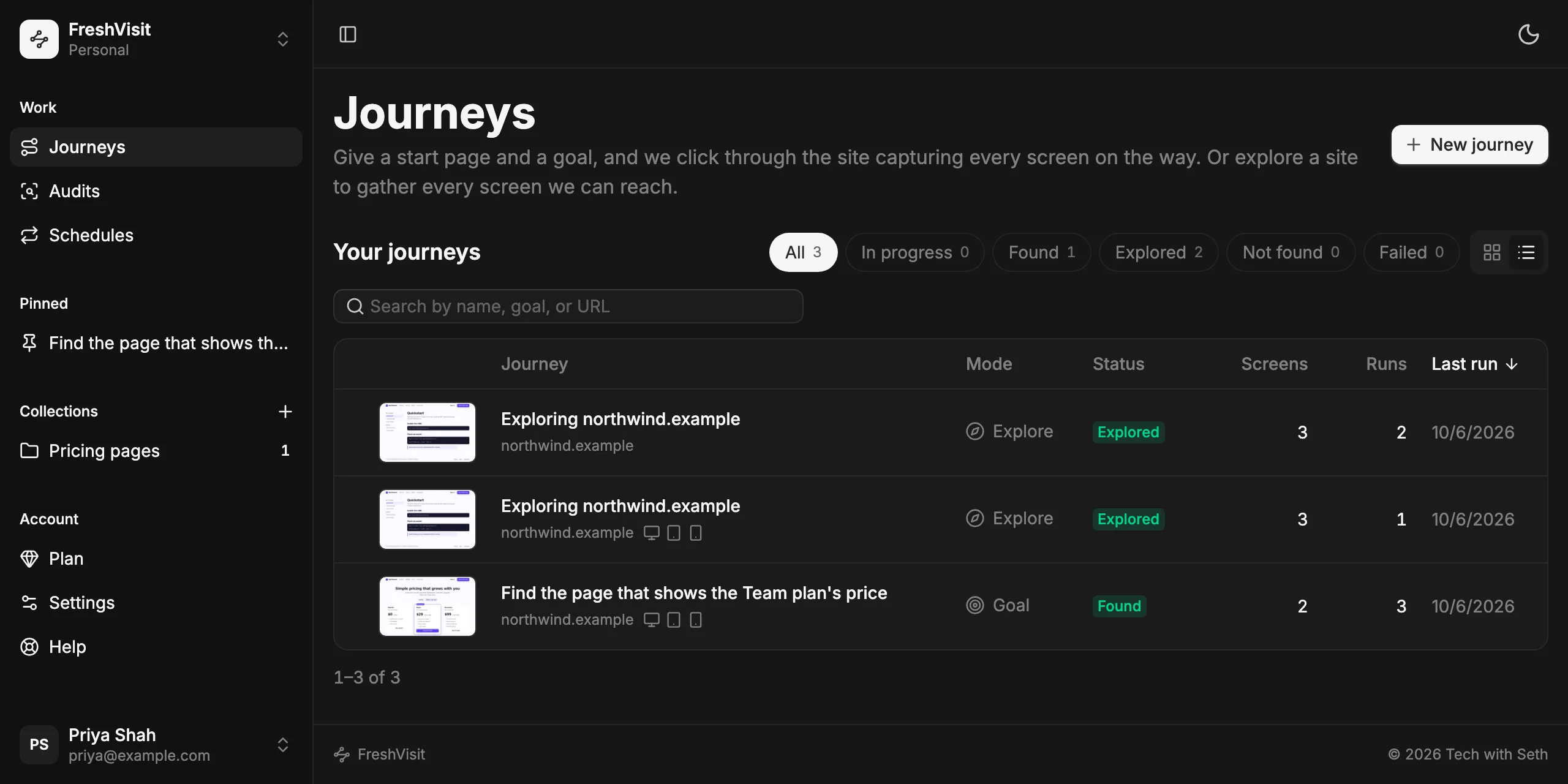
Once you’re signed in, the sidebar on the left holds everything you’ve made. On a phone, open it with the button at the top left. A new account starts with one finished example journey, marked Example, so there’s a result to look at, and a video of it to watch, before your own has run.
- Journeys
- Every goal journey and Explore you’ve started, with how its latest run ended. Filter by status, or switch between the list and the grid.
- Audits
- Your audits, with their accessibility issues and style issues counted.
- Schedules
- The journeys and audits that repeat daily or weekly, and when each runs next.
- Pinned
- The journeys and audits you open most, one click away. Drag a journey onto Pinned to pin it.
- Plan
- Your plan, what it includes, and how much of this month’s runs you’ve used. See Teams and plans.
- The space menu
- At the top of the sidebar: your personal space, and any team workspace you’re in. Everything below it belongs to the space you pick.
- Collections
- Folders for related journeys and audits, like “Checkout” or “Competitor pricing”. One journey can sit in several.
Use it from an AI assistant
An AI assistant such as Claude can start journeys, Explores, and audits for you and read how they went, through MCP. It acts as you: it sees what you can see, and its runs count toward your plan like any other.
- 1
Make an access key
In Settings, under AI assistants, name a key (say, “Claude Code on my laptop”) and press Create key. Copy it right away: it’s shown only once.
- 2
Add it to your assistant
For Claude Code, press Copy Claude Code command and paste it into a terminal. Other assistants that speak MCP take the server URL shown on the card and the header Authorization: Bearer followed by the key.
- 3
Ask in plain words
“Can a visitor find the refund policy on example.com on a phone?” or “Audit example.com and fix what it finds in this codebase.” The assistant starts the run, waits for it, and reads the result: every step, the answer, and for an audit each issue with the elements to fix and a prompt to fix it.
Good to know
- Which sites can it visit?
- Public websites. With Team, also your own site signed in: through its sign-in form, a password pop-up, or headers (see Teams and plans). Anything on your own network stays out of reach.
- How many clicks does a goal journey get?
- 10 steps unless you raise it, up to 15. Each run also stops after about eight minutes of browsing.
- How many journeys can I start?
- Up to 5 at once from the New journey dialog. Every run counts toward your plan’s runs for the month, starting again on the 1st: 20 on Free, 300 on Pro, 1,500 on Team. Run again and repeats count too, a run on several devices counts once, and the runs you start yourself also have a limit of 5 an hour (repeats don’t use it up). Settings shows how many you’ve used.
- Why does a run say Queued?
- Up to 3 runs go at once on one plan, a workspace’s included. Start more and the rest wait as Queued, then start on their own as the others finish. A journey or audit runs one at a time, so Run again waits until its run has finished.
- Do I have to keep the page open while it runs?
- No. We email you when a journey or audit you started finishes. Repeats on a schedule only email when they find a change, on the Team plan. Switch either email off under Notifications in Settings.
- What if a site shows a CAPTCHA?
- The run stops there and says so. It never tries to get past a CAPTCHA or bot check.
- Will a run give the same result every time?
- Not always. Sites change between runs, and close calls can go either way. Run it again before you act on one surprising result.